Blog

  • MetaTrader 5 Backtesting: Strategy Tester Tutorial

    MetaTrader 5 Backtesting: Strategy Tester Tutorial

    Understanding Metatrader 5 Backtesting

    Metatrader 5 is not just a trading platform; it’s a gateway to testing and refining your trading strategies. This section will introduce you to the basics of Metatrader 5 Backtesting. We’ll explore how to set it up, choose your trading instruments, and select the right strategies and timeframes. It’s a process that allows you to simulate your strategy against historical market data, offering invaluable insights.

    Metatrader 5 Backtesting: Leveraging Historical Data for Effective Strategy Analysis

    Backtesting trading strategies in Metatrader 5 heavily relies on historical data. This data is crucial as it encompasses detailed bar information, including open, high, low, and close prices. Such comprehensive data allows traders to meticulously analyze how a strategy would have performed in the past, spanning months or even years. Historical data in Metatrader 5 provides an indispensable foundation for backtesting. It acts as a lens through which traders can view and understand market behaviors during different periods.

    This historical perspective is vital for traders to evaluate the profitability and feasibility of their strategies based on how they would have fared in past market conditions. However, it’s essential to bear in mind that past profitability does not necessarily predict future outcomes. Therefore, continuous evaluation and adaptation of strategies are crucial for sustained success in trading. Metatrader 5’s advanced backtesting tools, combined with extensive historical data, empower traders to refine their strategies with a higher degree of precision and confidence.

    In Metatrader 5, accessing extensive historical data is key for a thorough backtest. To achieve this, simply press the HOME key on your keyboard. This action prompts Metatrader 5 to load additional bars, effectively extending the range of your backtesting data. The more data you have, the longer and more comprehensive your backtest can

    EA Studio, which will be discussed later in this post, includes vast amounts of historical data from several reliable brokers, and is customisable to your broker’s fees, spreads, commissions and swaps. Getting adequate historical data from your broker has always been one of the biggest challenges when backtesting or creating strategies. This is why we created our FREE Historical Data App.

    Enhancing Metatrader 5 Backtesting with Comprehensive Historical Data App

    Complete and Reliable Forex Historical Data

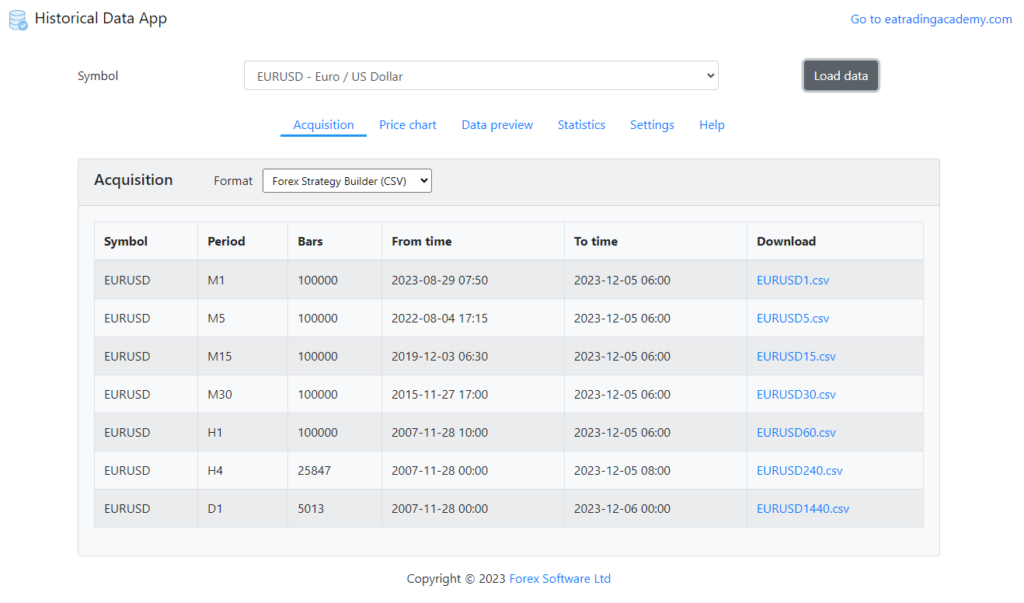
    For traders using Metatrader 5, the availability of quality Forex historical data is crucial for accurate backtesting. This proprietary Historical Data App offers data sourced from DukasCopy Europe, renowned for its precision. The data is collected from accurate tick data and then compiled into bar data, ensuring no gaps or missing bars. This completeness is vital for traders who rely on thorough backtesting in Metatrader 5.
    MetaTrader-5-Backtesting-1

    Versatile Data Formats for Diverse Needs

    The Forex Historical Data in this app is tailored to suit various platforms, including Metatrader 5, EA Studio, and FSB Pro. This versatility means that traders can choose the format that best fits their specific backtesting needs. Additionally, there’s an option to export this DukasCopy Europe Historical data into Excel, offering flexibility and convenience for data analysis.

    Rapid Download Capability

    Recognized as the fastest data app on the market, the Forex Historical Data App ensures efficiency in backtesting preparation. It allows for the swift download of historical data, with the capability to download up to 200,000 bars for each asset in mere seconds. This speed is a significant advantage for Metatrader 5 users who require quick access to extensive historical data.

    Regularly Updated Data for Up-to-Date Analysis

    One of the unique features of this app is its regular updates. The historical data is refreshed every 24 hours, ensuring that traders have access to the most recent information. This feature is particularly beneficial as it eliminates the need to rely on MetaTrader or other trading platforms for the latest data updates. Traders using Metatrader 5 can confidently backtest their strategies with the assurance that they are using the most current and comprehensive data available.

    Setting Up Your Backtest

    Setting up a backtest in Metatrader 5 is simpler than you might think. We’ll walk through the steps of selecting your trading instrument, the specific strategy you want to test, and the appropriate timeframe. This setup is crucial as it lays the foundation for accurate backtesting results. For the purposes of this blog post, we’ll focus on Stocks, specifically, Tesla.

    Setting Up the Expert Advisor

    Now we will walk you through placing an Expert Advisor on MetaTrader for backtesting. The first step in this process is to navigate to the ‘File’ menu and select ‘Open Data Folder’.
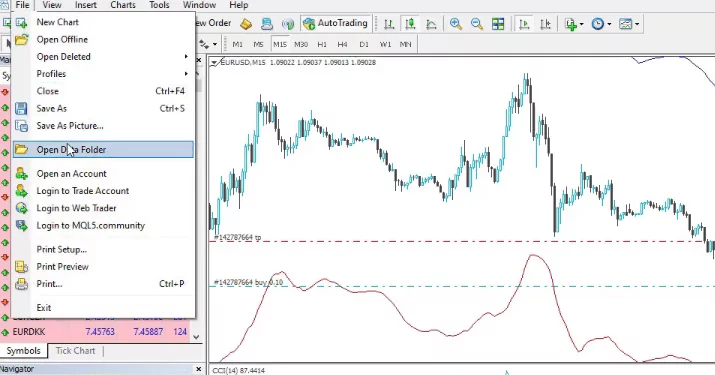
    Navigating to the Right Folder

    Once you’re in the ‘Open Data Folder’, proceed to the ‘MQL4’ folder and then to the ‘Experts’ folder. This is where you’ll paste your Expert Advisor. After doing so, close the folder to move on to the next step.
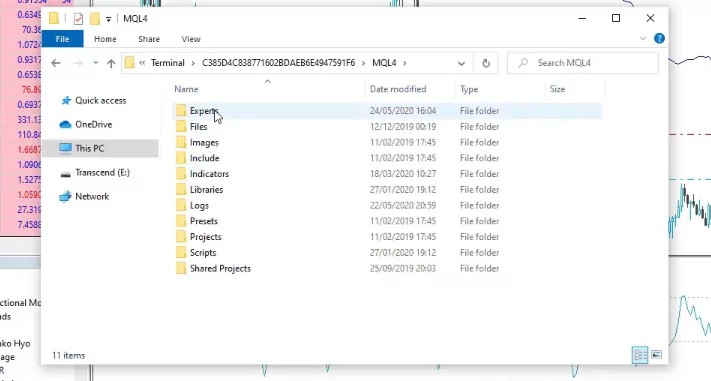
    MetaTrader-5-Backtesting-3

    Compiling the Expert Advisor

    The next crucial step involves going to the ‘Navigator’ tab. Here, right-click on the Expert Advisor and select ‘Modify’. This opens the MetaEditor, where you can compile the Expert Advisor and check for any errors or warnings that might affect your trading strategy backtest.
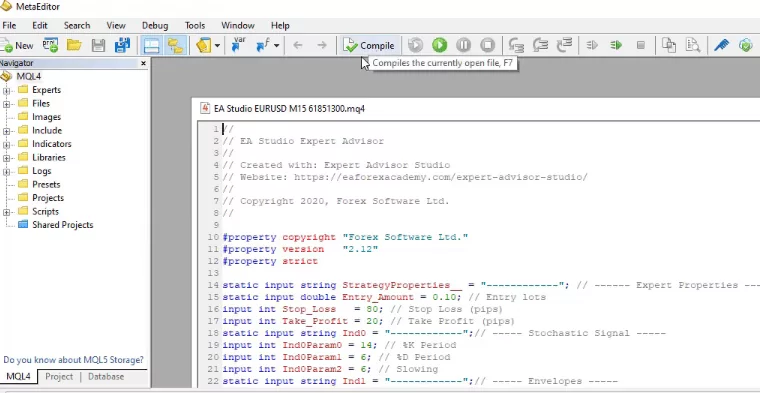
    Setting Up the Expert Advisor on the Chart

    After compiling the Expert Advisor, drag it over to the chart and drop it. A small menu will pop up, displaying the inputs of the Expert Advisor, the parameters of the indicators, and the strategy properties. At the bottom of this menu, you’ll find the ‘magic number’. This number is essential as it helps you track the performance of multiple Expert Advisors on a single account.
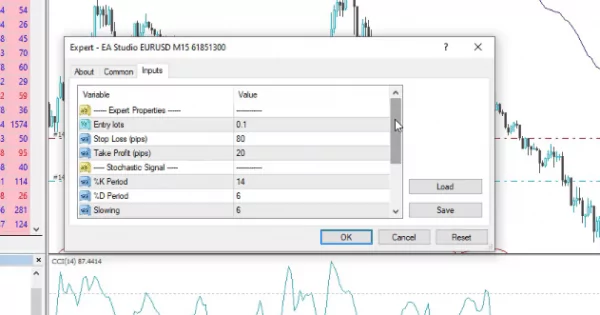
    MetaTrader-5-Backtesting-5

    Enabling Algo Trading and Testing on a Demo Account

    Remember to enable Algo Trading if you intend to trade with the Expert Advisor. However, if you’re conducting a trading strategy backtest, Algo Trading can be turned off. It’s also recommended to test any Expert Advisor on a Demo account before using it on a real account. This step is crucial for adjusting trading quantities, Stop Loss, and Take Profit settings without risking real money.

    So right-click and go to Expert Advisors and then click on Strategy Tester.
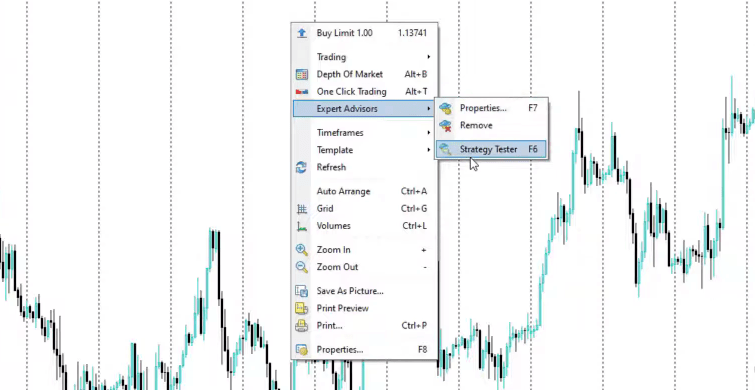
    MetaTrader Strategy Tester

    Fine-Tuning Your Metatrader 5 Backtesting: Selecting the Right Period and Model

    Choosing the Right Timeframe for Backtesting

    In Metatrader 5 Backtesting, setting the right symbol is just the beginning. You have the flexibility to use the entire historical data available or opt for a custom period. This choice is crucial as it determines the scope of your backtest. To begin the backtest, right click on your chart, select Expert Advisors and then Strategy Tester. Next, select a custom period, simply access the ‘Date’ dropdown menu. Here, you’ll find two boxes that become editable, allowing you to specify the exact timeframe you wish to analyse. This feature is particularly useful if you’re looking to focus on a specific period in history for your backtest.

    Understanding Modeling Options in Metatrader 5

    The ‘Modelling’ section in Metatrader 5 is where you choose how your strategy will be tested. If your strategy is based on the opening prices of bars, like the Tesla stock trading strategy mentioned here, then ‘Open prices only’ is the ideal choice. This option ensures that the strategy checks for entry and exit conditions precisely at the opening of each new bar. It’s a straightforward and efficient method, especially suited for strategies that rely on the opening market conditions.
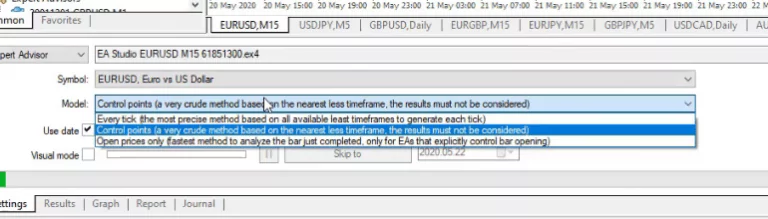
    Tailoring the Model to Different Strategies

    However, Metatrader 5 Backtesting is versatile enough to accommodate various types of strategies. If you’re working with a strategy that involves stick patterns or complex mathematical calculations, you might need to select a different modelling option. Each option caters to different strategy requirements, ensuring that you can backtest a wide range of strategies effectively. For the purpose of this guide, though, the focus remains on ‘Open prices only’, which is a widely applicable and efficient method for many trading strategies.

    Optimizing Strategies in Metatrader 5 Backtesting

    Setting the Initial Balance and Leverage

    In Metatrader 5 Backtesting, the ‘Optimizing the strategy’ section follows ‘Modelling’. Here, you first encounter the option to set your initial balance. This balance can be any amount, ranging from 10,000 to 100,000 or more, depending on your preference. Next, you have the flexibility to adjust the leverage. Leverage is a critical aspect as it can amplify both gains and losses in trading.

    To Optimize or Not to Optimize

    The crucial decision in this section is whether to use optimization. Optimization in Metatrader 5 Backtesting involves the software automatically finding the most suitable parameters for your strategy. However, a word of caution is necessary here. Over-optimization is a real risk. It means making your strategy too perfect, based on past data, which might not always translate well into future market conditions. Therefore, unless you are experienced in handling such tools, it might be safer to avoid optimization in your backtesting process.

    Visual Mode in Metatrader 5 Backtesting

    Engaging the Visual Mode

    After setting up your strategy, Metatrader 5 Backtesting offers a ‘Visual mode’. This mode allows you to see the backtesting process in action. By checking this option and clicking the ‘Start’ button, a new tab opens up, displaying the results of your strategy’s performance. One of the advantages of this mode is the ability to adjust the speed of the simulation, giving you control over how quickly you view the backtesting results.
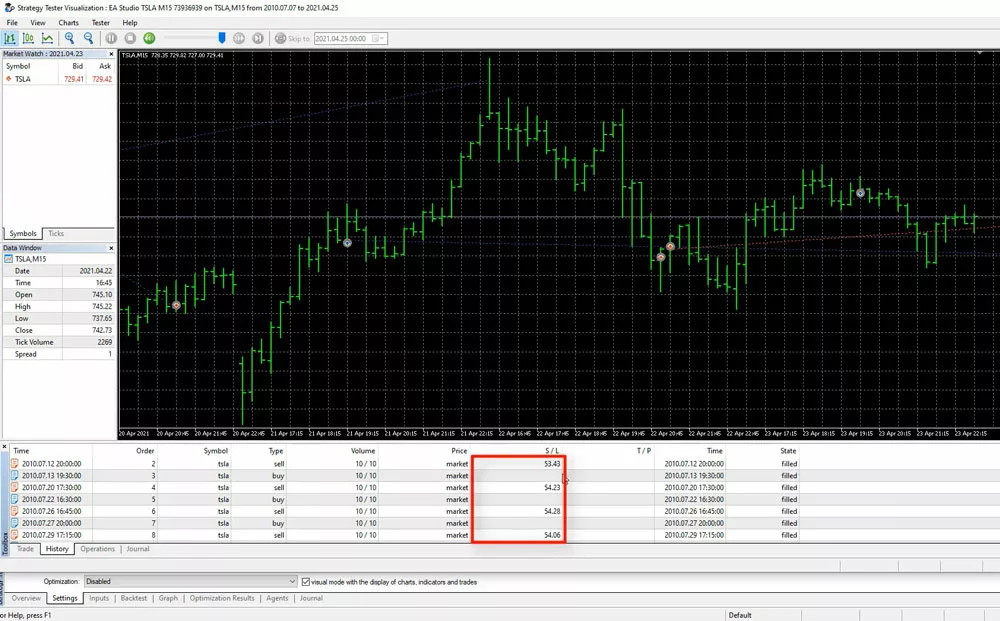
    MetaTrader-5-Backtesting-7

    Analyzing Trade History and Operations

    In the ‘History’ tab, you can clearly see important details like where the Stop Loss was set for each position. This tab provides a historical view, showing data availability from the selected broker, sometimes going back as far as 2010. To access more historical data, you can use the ‘Home’ key on your chart in Metatrader 5. This action loads as much data as available, which is especially useful before starting your backtesting.

    Understanding the Strategy Tester Visualization

    Operations Tab for Detailed Trade Analysis

    Adjacent to the ‘History’ tab is the ‘Operations’ tab. This section is where you can see where each trade was opened and at what price. For instance, if you are analyzing a strategy involving Tesla stocks, you can observe how the stock price has evolved since 2010. These tabs display all trades executed with the chosen Expert Advisor.
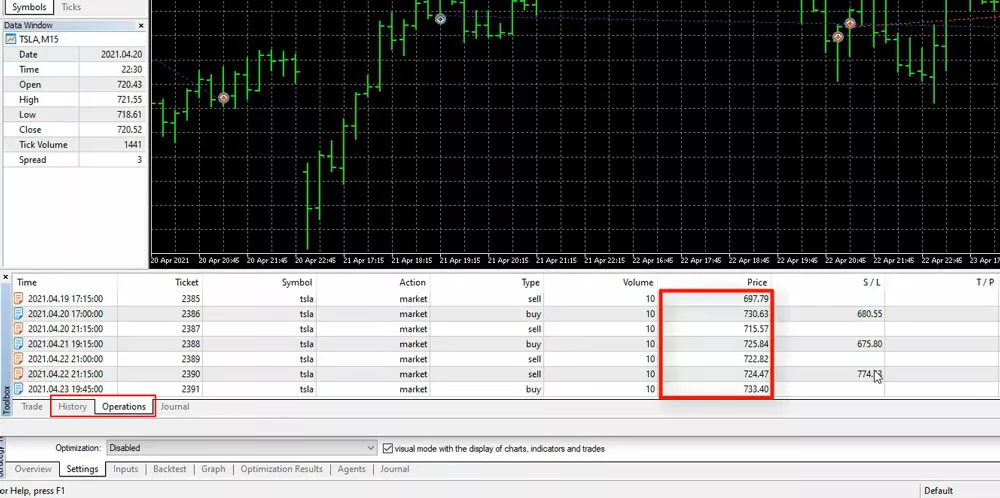
    Navigating Between History and Operations Tabs

    A notable aspect of Metatrader 5, which differs from Metatrader 4, is the separation of the ‘History’ and ‘Operations’ tabs. In Metatrader 5, these tabs are distinct, with one showing the Stop Loss and the other displaying the open price and Stop Loss. This separation can be slightly confusing for new users. If you need to compare specific trades, you might find yourself switching between these two tabs, which can be less convenient compared to the more integrated approach in Metatrader 4.

    Analyzing Backtesting Results in MetaTrader 5

    Understanding the Strategy Tester Visualization

    In MetaTrader 5, backtesting a strategy using the Strategy Tester visualization is a straightforward process. This feature allows you to get a visual representation of how your strategy performs. However, to delve deeper into the performance of your strategy, you need to navigate to the ‘Backtest’ section. This is where MetaTrader 5 showcases its robust analytical capabilities.

    Key Metrics in Backtest Results

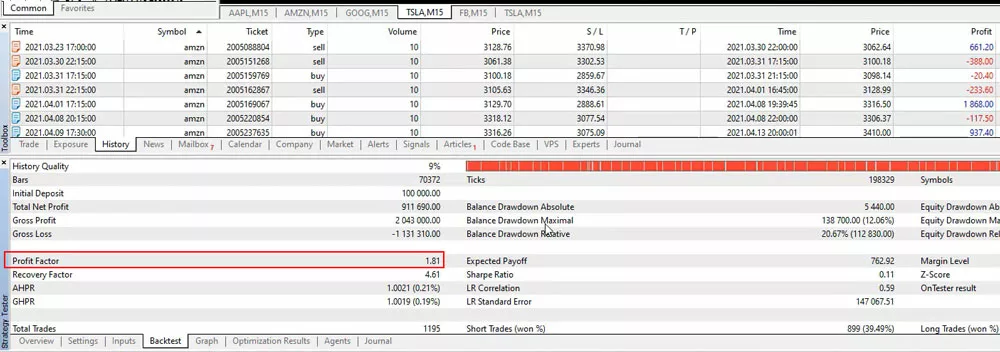
    In the ‘Backtest’ section, you will encounter several crucial statistics that provide insights into your strategy’s performance. These include the overall balance, the drawdown, and the expected payoff. One of the key metrics here is the ‘Profit factor’, which in this instance is above 1.81. This figure is significant as it represents the ratio of all profits to all losses. A Profit factor greater than 1 indicates that the strategy is profitable, as it means the profits exceed the losses.
    MetaTrader-5-Backtesting-9

    Comparing MetaTrader 5 and MetaTrader 4 Backtesting

    When it comes to backtesting statistics, MetaTrader 5 offers a more comprehensive set compared to its predecessor, MetaTrader 4. This enhanced capability allows for a more detailed analysis of the strategy’s performance.

    The Graph Tab: Visualizing Strategy Performance

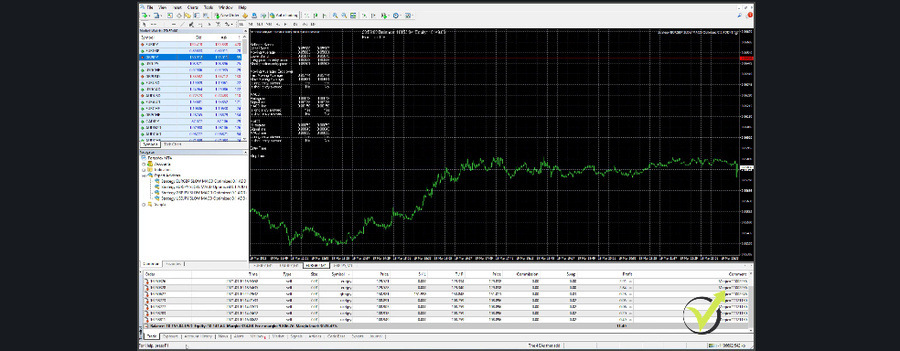
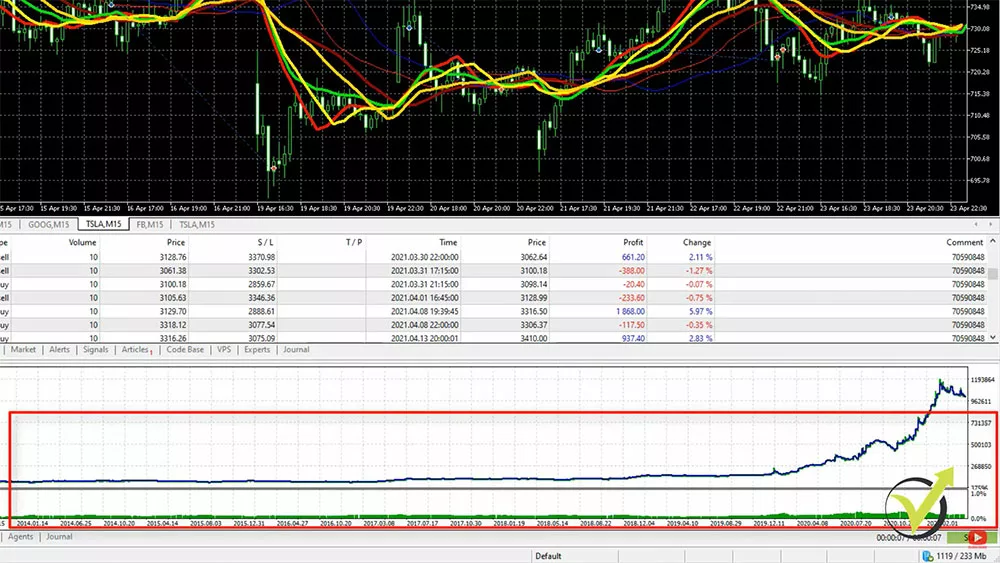
    Another notable feature in MetaTrader 5 backtesting is the ‘Graph’ tab. This tab presents a graphical representation of the trading strategy’s performance over time. It becomes particularly useful in understanding how a strategy fares in different market conditions. For example, in recent months, the market for Tesla stocks has been quite volatile. The ‘Graph’ tab clearly shows the strategy’s performance during these periods, highlighting significant movements and results. In this case, it demonstrates that the strategy achieved impressive profits amidst the market’s volatility.
    Advancing with EA Studio

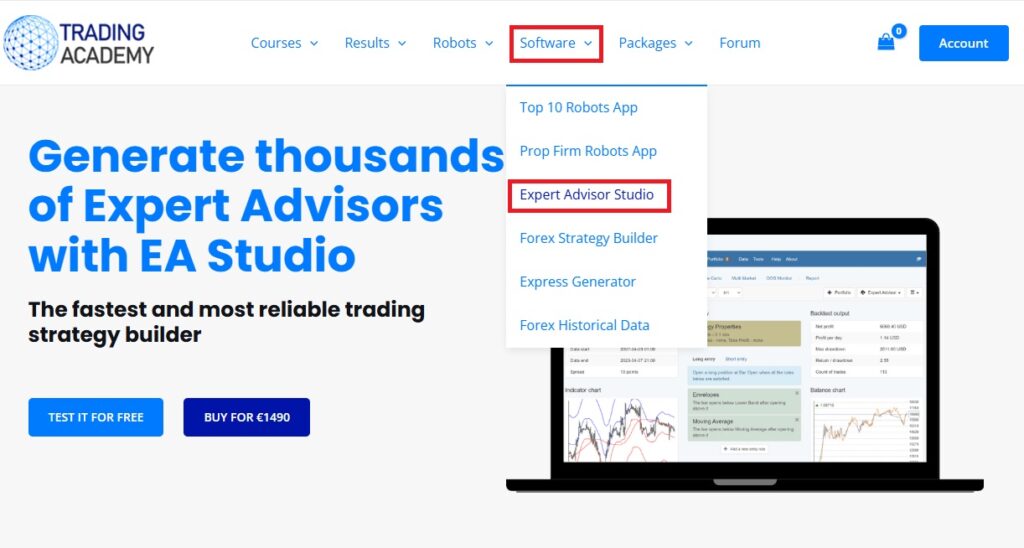
    While Metatrader 5 offers a solid foundation for backtesting, EA Studio takes it to the next level. This advanced tool provides detailed analysis and rapid results, making it a favourite among professional traders.

    MetaTrader 5 vs EA Studio: A Comparative Analysis of Backtesting Tools

    Instant Feedback and Detailed Analysis

    EA Studio’s standout feature is its ability to provide immediate feedback on strategy adjustments. This means you can tweak your strategy and see how it performs instantly, saving you valuable time. The detailed analysis offered by EA Studio helps you understand the nuances of your strategy, ensuring you’re well-equipped to make informed trading decisions.

    Ease of Use: EA Studio’s Advantage

    When it comes to backtesting trading strategies, many prefer using Expert Advisor Studio over MetaTrader 5. The primary reason for this preference is the ease of use offered by EA Studio. Unlike MetaTrader 5, where you might find yourself switching between multiple tabs, EA Studio streamlines the process. Its user-friendly interface and professional-grade software make it a preferred choice for many traders.

    Note, this is in the context of backtesting strategies. This is just one of the many features of EA Studio, not least of which is it’s ability to automatically create strategies, based on backtesting over historical data. You can select and adjust these dates as needed when using the Generator. We’ll look at this in more detail in the Data Horizon section below. You can also create your Expert Advisors from scratch with no programming or coding experience required. Let’s discuss this in more detail.

    Benefits of EA Studio for Backtesting in Trading

    While MetaTrader 5 is a powerful tool for backtesting, EA Studio offers additional advantages, particularly for traders who need deeper statistical insights and faster testing capabilities.

    Comparison: MetaTrader 5 vs. EA Studio for Backtesting

    FeatureMetaTrader 5EA Studio
    Backtesting SpeedModerateExtremely Fast
    CustomizationLimitedExtensive
    Strategy OptimizationBasicAdvanced with Auto-Optimization
    Graphical AnalysisStandardMore Comprehensive
    User-FriendlinessRequires manual setupIntuitive interface

    Why EA Studio Stands Out:

    • Allows traders to instantly modify strategies and see the results without re-running the entire backtest.
    • Provides a more pessimistic outlook to help traders prepare for real-world market conditions.
    • Supports multi-strategy portfolio testing, enabling traders to run different Expert Advisors simultaneously.

    While MetaTrader 5 remains a robust choice, combining it with EA Studio enhances the accuracy and efficiency of backtesting for traders.

    Strategy Editor in Expert Advisor Studio

    Clear Layout of Trading Strategies

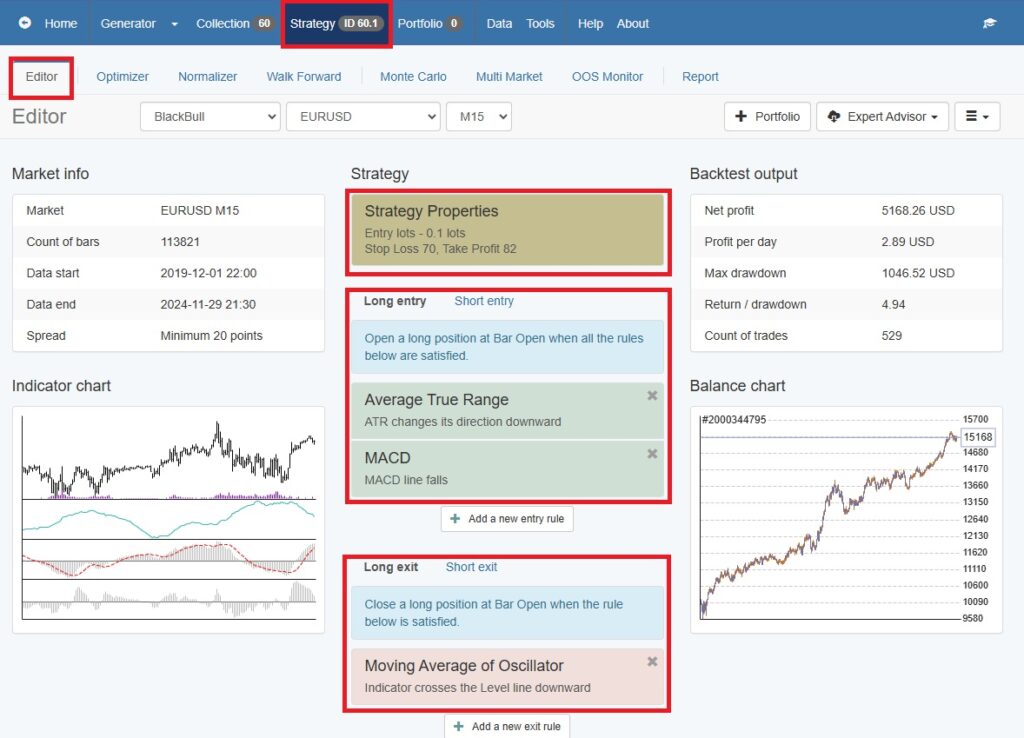
    In the Expert Advisor Studio Strategy Editor, every aspect of your trading strategy is displayed in a clear and straightforward manner. This layout makes it easy for traders, even those who are not native English speakers, to understand and analyze their strategies.

    Understanding Entry Indicators

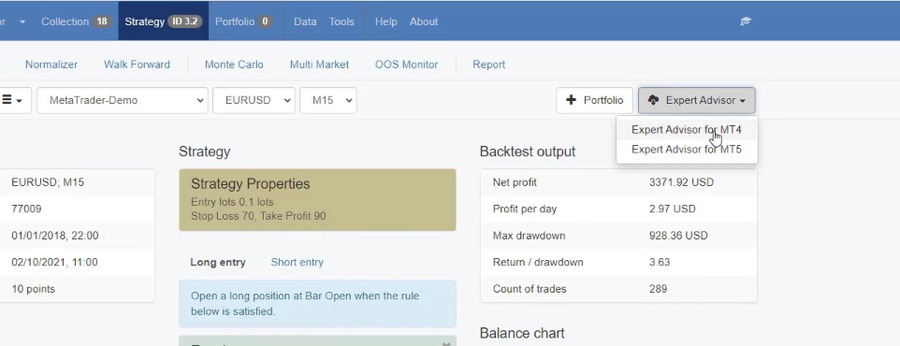
    One of the key features of this editor is the visibility and customisation of essential entry indicators. These tools are crucial for traders to identify potential entry points in the market. The Moving Averages, in particular, are used to detect trends, while the Alligator indicator helps in confirming the trend’s direction and strength. It’s important t note that these are just 2 of the many available indicators, and each indicator has an infinite number of parameters that can be set. The beauty of using EA Studio’s strategy editor is you can immediately see the backtest output as soon as any changes are, without the need to go through the process of backtesting your strategy after every adjustment, like you would in MetaTrader 4

    Example Strategy

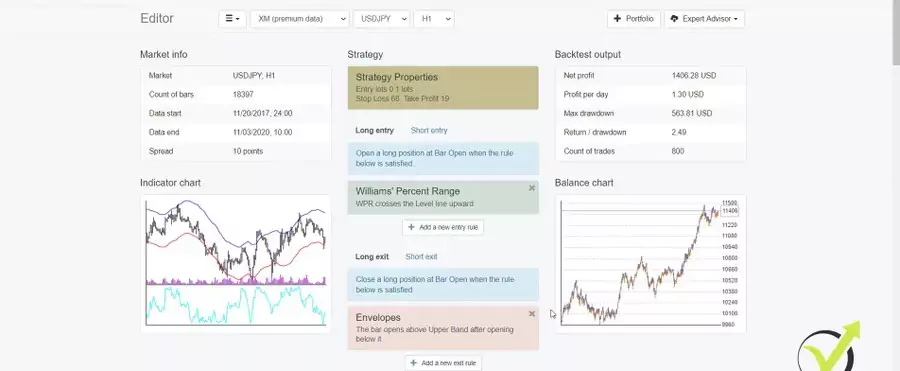
    Let’s take a look at a strategy created in EA Studio. This strategy uses the Bollinger Bands and William’s Percent Range as it’s entry indicators, and The Envelopes as it’s exit strategy, all with custom settings.
    MetaTrader-5-Backtesting-11

    Comprehensive Strategy Analysis in EA Studio

    In EA Studio’s Strategy Editor, traders can view their entire strategy with remarkable clarity. This tool displays crucial components like entry indicators, including popular ones like Moving Averages and the Alligator indicator. This level of detail is essential for traders to understand the mechanics of their strategy.

    Enhanced Visibility with Balance Chart

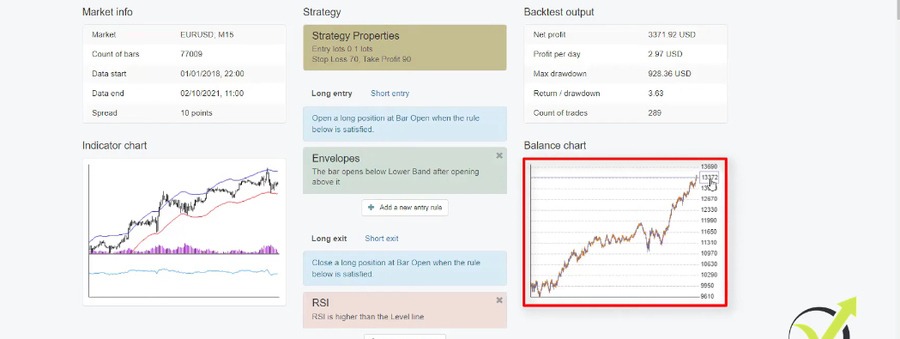
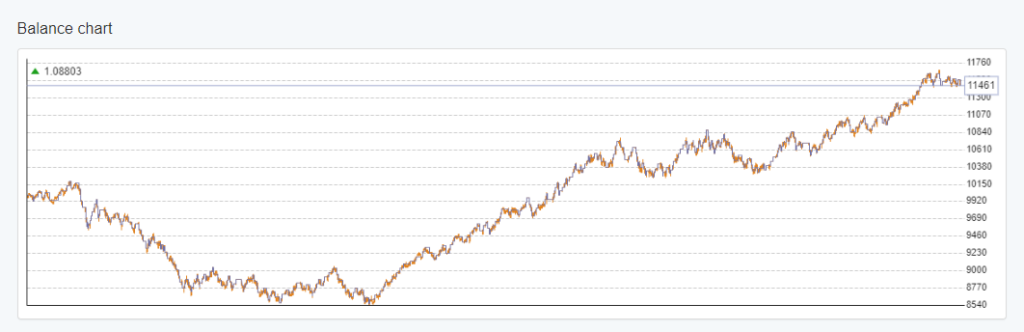
    The balance chart in EA Studio, similar to Metatrader 5, is presented in a differently sized window. This variation in size enhances clarity, making it easier for traders to analyze the performance of their strategy over time. The balance chart effectively illustrates the strategy’s profitability, providing a visual representation of gains and losses.
    Entry and Exit Indicators in EA Studio

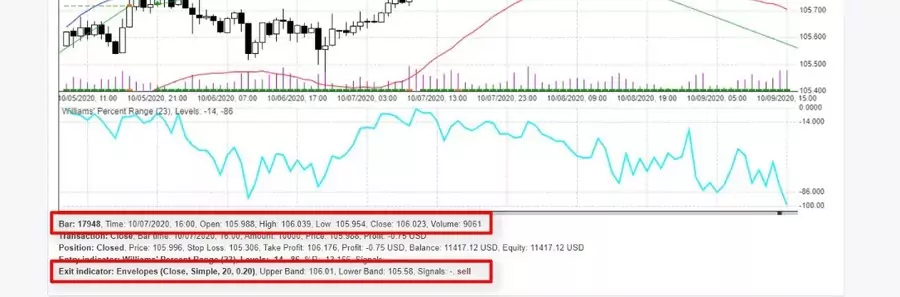
    EA Studio’s Strategy Editor also includes detailed entry and exit rules. For instance, the Williams’ Percent Range is used as an entry indicator, with specific conditions like crossing the level line upward. For exits, the Envelopes indicator is employed, with conditions such as the bar opening above the Upper Band after opening below it. These indicators and conditions are crucial for defining the strategy’s operational parameters.
    MetaTrader-5-Backtesting-13

    Indicator Chart for Precise Trade Analysis

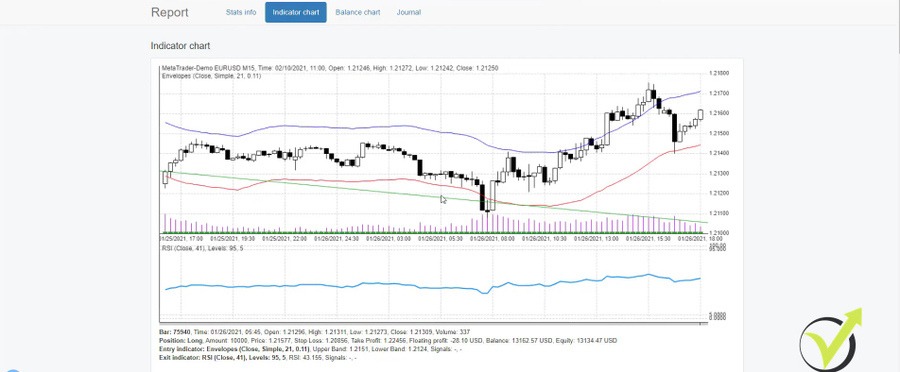
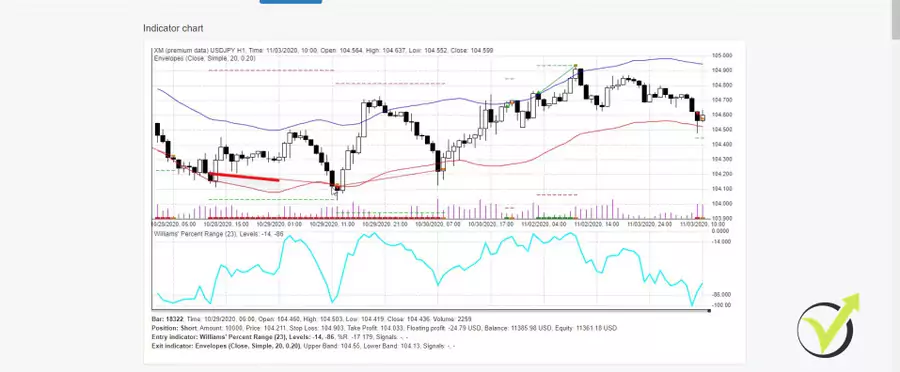
    One of the standout features of EA Studio is the Indicator chart. This chart allows traders to see exactly where trades were opened and closed, including short and long positions. For example, red bars or small lines below the chart indicate short positions, while green lines represent Take Profit points. This level of detail is invaluable for traders to understand the nuances of their strategy.
    Comprehensive Statistics in EA Studio

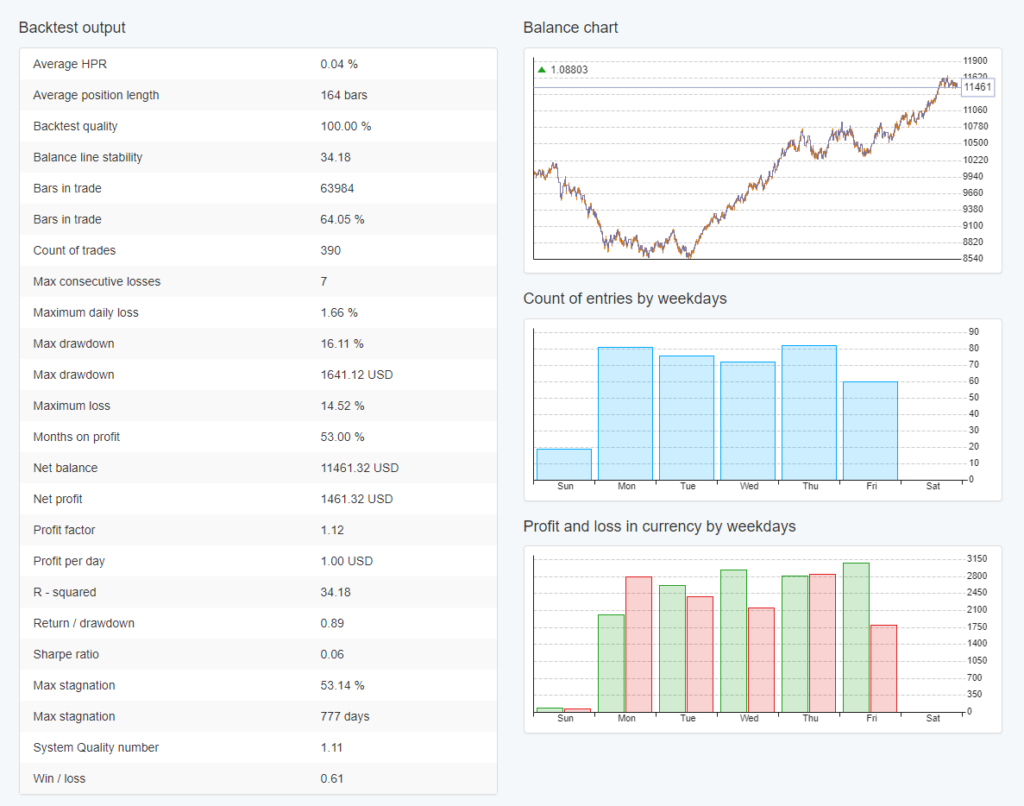
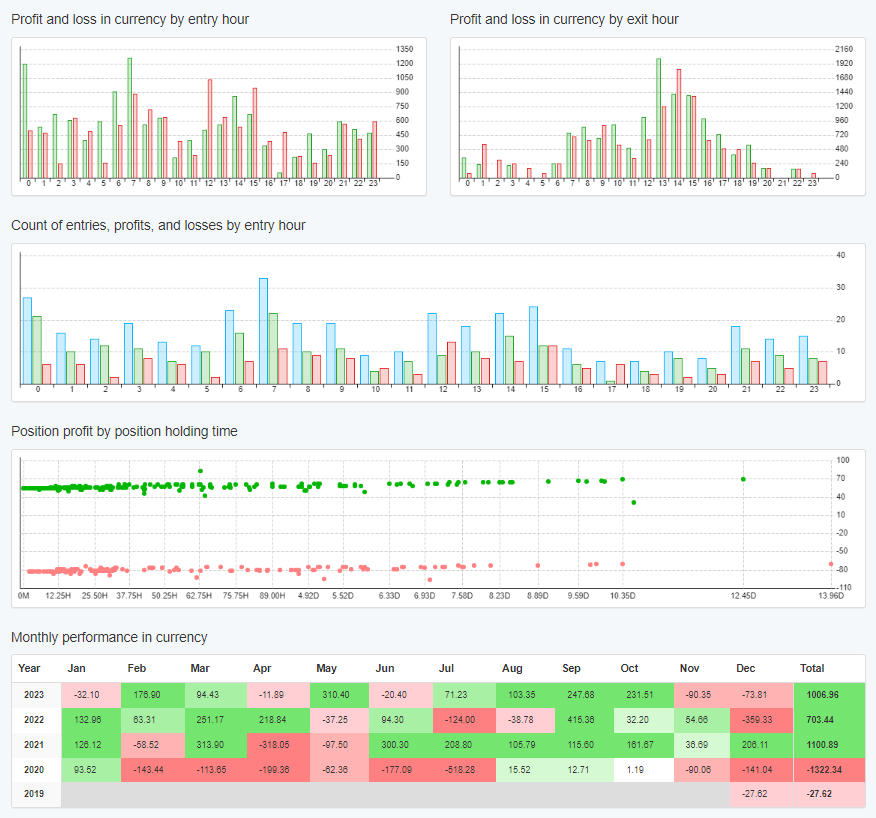
    EA Studio offers a wealth of statistics, providing a deeper understanding of the strategy. The backtest outputs include vital information like profit per day, maximum drawdown, return to drawdown ratio, and the count of trades. These statistics are crucial for evaluating the strategy’s performance and making informed adjustments.

    Data Horizon Feature in EA Studio for Metatrader 5 Backtesting

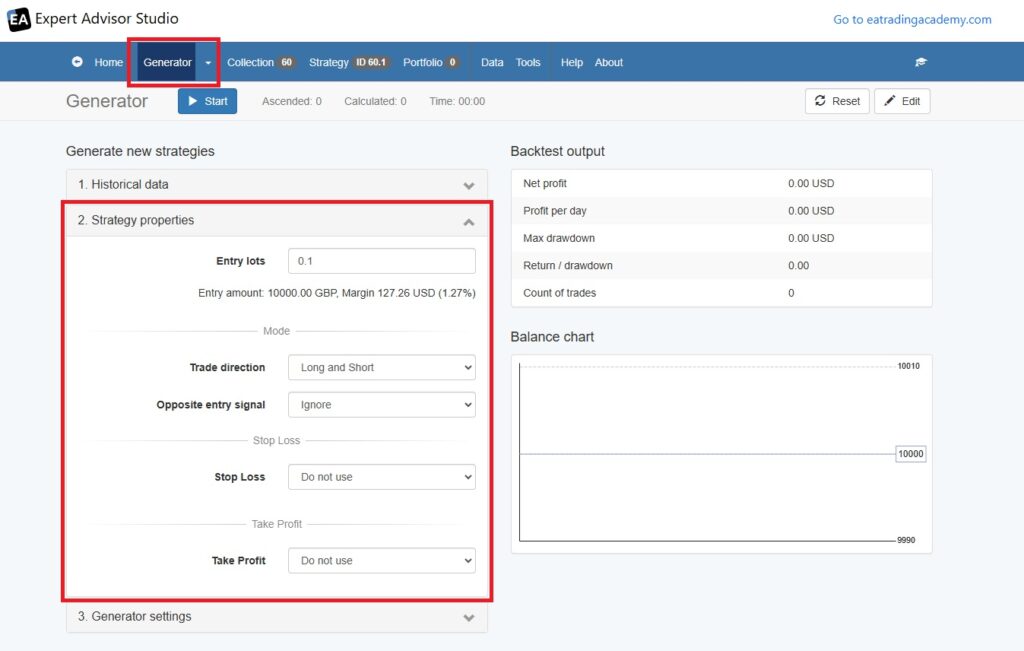
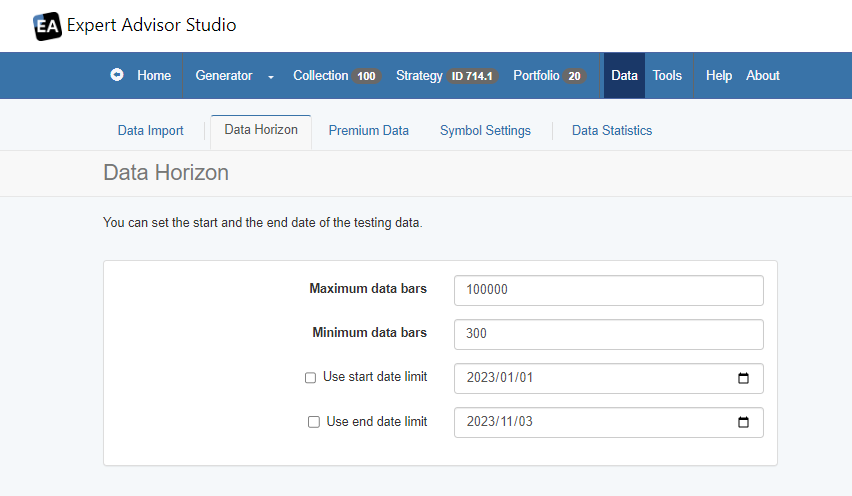
    In EA Studio, a key feature for backtesting is the ‘Data Horizon‘ function. This feature allows traders to select the range of historical data they wish to use for backtesting their strategies. With the ability to adjust the data horizon, traders can extend their analysis up to 200,000 bars for each asset. This extensive range is particularly beneficial for gaining a comprehensive understanding of a strategy’s performance over various market conditions. By utilizing this feature, traders can ensure that their backtesting is based on a broad and representative sample of historical data, enhancing the accuracy and reliability of their strategy evaluations. The Data Horizon function in EA Studio thus stands out as a crucial tool for traders aiming to refine their strategies with precision and depth in Metatrader 5.
    MetaTrader-5-Backtesting-15

    Risk Diversification and Historical Data Usage

    EA Studio also emphasizes the importance of risk diversification. By trading a portfolio of strategies, traders can balance out periods of losses with profitable trades. The use of historical data is key in this process, with EA Studio allowing the use of up to 200,000 bars for each asset. This extensive data range enables traders to backtest strategies over longer periods, providing a more comprehensive view of their effectiveness.

    Analyzing Trades in EA Studio

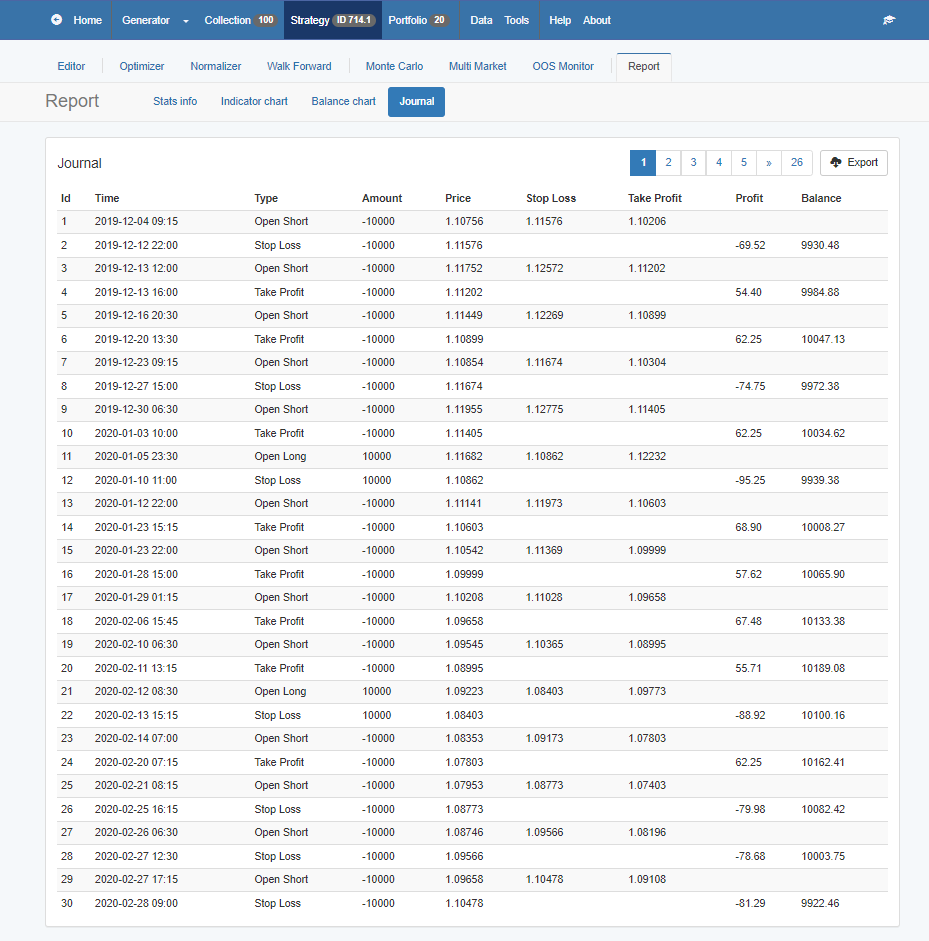
    The Journal in EA Studio is particularly useful for analyzing trades. It consolidates all trade data in one place, unlike MetaTrader 5, where data is spread across different tabs. For instance, you can easily review the most recent trades by navigating to the last page of the Journal. This feature allows for a quick and comprehensive analysis of trade performance.
    Comparing Trades Between Platforms

    A direct comparison of trades between MetaTrader 5 and EA Studio will reveal their similarities. There may be slight difference due to live speeds, missing bars in historical data from the broker and other fees including swaps. However, if set up correctly, the overall backtest balance line and equity figures should be very similar.

    MetaTrader 5 Strategy Tester Visualization

    While MetaTrader 5 includes a feature known as the Strategy Tester Visualization, which is a useful tool for traders, it does come with certain limitations, especially when compared to the capabilities of EA Studio. One notable limitation in MetaTrader 5 is observed when users switch between the ‘History’ and ‘Operations’ tabs. Unlike EA Studio, where a seamless transition between different data points is possible, MetaTrader 5 does not display the backtesting results in these tabs. This lack of visibility can be a significant drawback for traders who rely on these results to gauge the effectiveness of their trading strategies. The backtesting results are essential for a comprehensive analysis of how a strategy performs under various market conditions, and not having them readily available in the same tab can hinder the efficiency of the strategy evaluation process in MetaTrader 5.
    MetaTrader-5-Backtesting-17

    Advantages and Disadvantages of MetaTrader 5

    While MetaTrader 5 provides a good backtest to ensure consistency with EA Studio, it has some disadvantages. For those accustomed to EA Studio or MetaTrader 4, following trades in MetaTrader 5 can be challenging due to the separation of data into different tabs. However, MetaTrader 5 does offer more data and backtesting statistics compared to MetaTrader 4, which is a significant advantage.

    Avoiding Backtesting Bias and Look-Ahead Bias

    One of the biggest challenges in backtesting is bias, which can mislead traders into believing a strategy is more successful than it actually is.

    Types of Backtesting Bias:

    1. Selection Bias: Occurs when traders pick only favorable time periods for testing.
    2. Survivorship Bias: Happens when only successful assets are considered while ignoring failed ones.
    3. Look-Ahead Bias: Involves mistakenly using future data that would not have been available during the actual period tested.

    Ways to Avoid Bias:

    • Use diverse historical data sets to test a strategy under multiple conditions.
    • Conduct out-of-sample testing by leaving a portion of data unseen during strategy development.
    • Ensure backtests replicate real-world trading conditions, including spreads and slippage.

    Free 15 Day Trial

    In EA Studio, a standout feature for Metatrader 5 backtesting is the 15-day free trial. This trial is a game-changer, especially when comparing EA Studio with MetaTrader backtesting. For 15 days, you can make use of this unlimited use license, and create thousands of your own robots. I often demonstrate MetaTrader backtesting in my courses to highlight the significant differences. EA Studio is professional software, offering a more streamlined and efficient backtesting experience.

    The beauty of EA Studio lies in its simplicity and power. You don’t need programming skills or the need to hire developers. With just one click, you can export numerous Expert Advisors. This ease of use is why I initially chose EA Studio and why it’s now an integral part of our Academy. Our entire team, along with hundreds of our traders, use it regularly.

    Final Thoughts on Backtesting with MetaTrader 5

    To perform strategy backtesting in MetaTrader 5, the process is straightforward. You need to set up the Expert, Symbol, Timeframe, and Modeling, with ‘Open prices only’ being a common choice for EA Studio strategies. Starting the backtest will reveal if the strategy was profitable up to the current moment. However, it’s important to remember that past performance in backtesting doesn’t guarantee future profitability.

    MetaTrader 5’s Strategy Tester and EA Studio each have their strengths, and choosing between them depends on your specific needs and familiarity with the platforms. EA Studio is however, undoubtedly more powerful and feature-rich.

    Tips for Successful Backtesting

    Successful backtesting requires more than just the right tools; it needs the right approach. Here, we’ll share tips and best practices for backtesting in both Metatrader 5 and EA Studio. From setting up your test correctly in Metatrader 5 to leveraging the instant feedback in EA Studio, these tips will help you make the most of your backtesting experience.

    Conclusion: Your Path to Trading Success

    In conclusion, Metatrader 5 Backtesting is a powerful starting point for any trader. Coupled with the advanced capabilities of EA Studio, it forms a robust toolkit for any trader’s arsenal. Remember, the key to success in trading lies in well-tested strategies. So embrace these tools, refine your strategies, and step confidently into the trading arena!
  • MetaTrader 5 Tutorial for Beginners + PDF Guide

    MetaTrader 5 Tutorial for Beginners + PDF Guide

    In this lecture, I’m going to make a brief MetaTrader 5 tutorial for beginners. MT5 is the platform that we’ll be using for our automated trading, and we will be putting our Expert Advisors on it. And I’m just going to run you through some of the features and the basic layout and some of the options that you have with MetaTrader 5.

    If you look for a MetaTrader 5 tutorial in PDF, scroll to the bottom of the page and leave your email to download the guide. This guide will help you to get familiar with the basic terminology and the most common settings of the platform.

    Timeframes

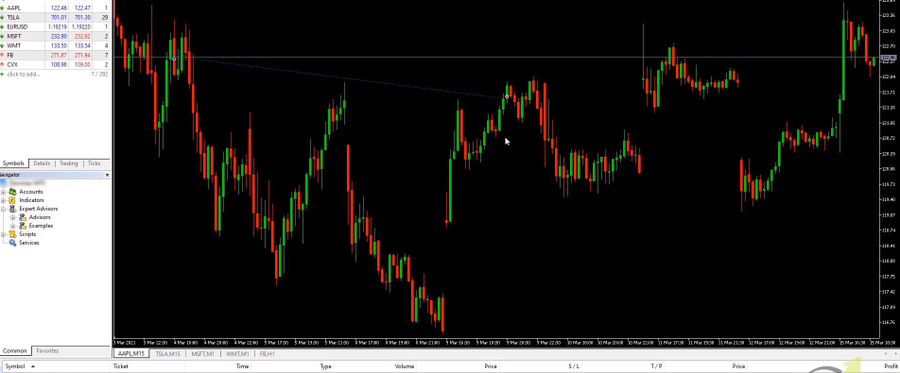
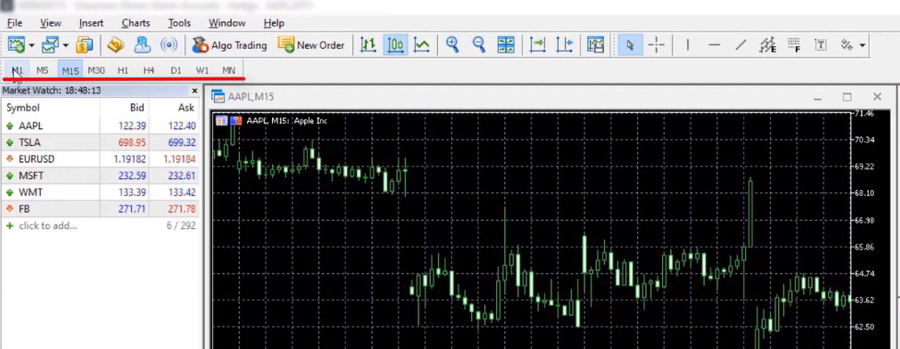
    So let’s start this MetaTrader 5 tutorial with the timeframes. Now, the timeframes is this bar you can see here on the taskbar.

    We have M1, M5, M15, M30, H1, H4, D1, W1, and MN. And basically what it is, is it’s the 1-minute chart, the 5-minute, the 15, the 30, the 1 hour, the 4 hours, the 1 day, the 1 week, and the 1 month.

    MetaTrader 5 timeframes tutorial
    The timeframes

    I’m just going to expand the chart, this is the Apple (AAPL). What you can see is that currently, it is on M15. So this is the 15-minute chart.

    15 minute chart in MT5
    The 15 minute chart

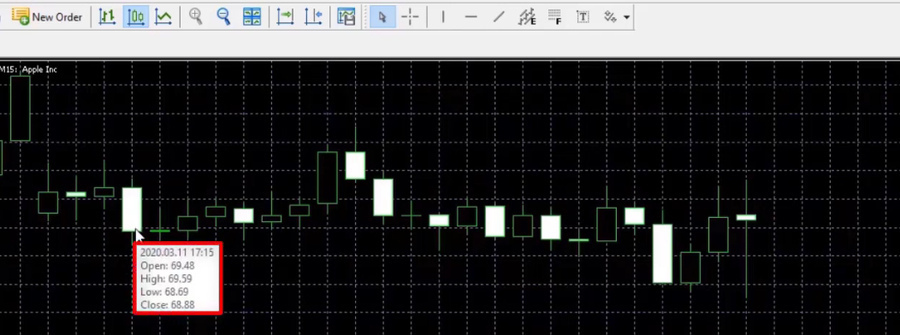
    And each one of these candlesticks, each one of these bars represents a 15 minute time period. I’m going to zoom in a little bit, so you can see it a little bit better.

    And you can see exactly what the high and the low were simply by putting your mouse over it and the movement in that timeframe in the candlestick itself. There is the information there, if we put our mouse over it, it will give us the information to the open, the high, the low, and the close at that time.

    So that is a brief tutorial of the 15 minute chart in MetaTrader 5.

    When you place the mouse over a Candle stick

    If we click on M30, the chart changes to 30 minutes. And now each one of these candlesticks represents a 30 minute time period and the same for the rest of them. Just put it back on M15. And what I’m going to do is zoom out a little bit simply by clicking on the zoom out. We can get a much better idea of what’s going on.

    Market Watch

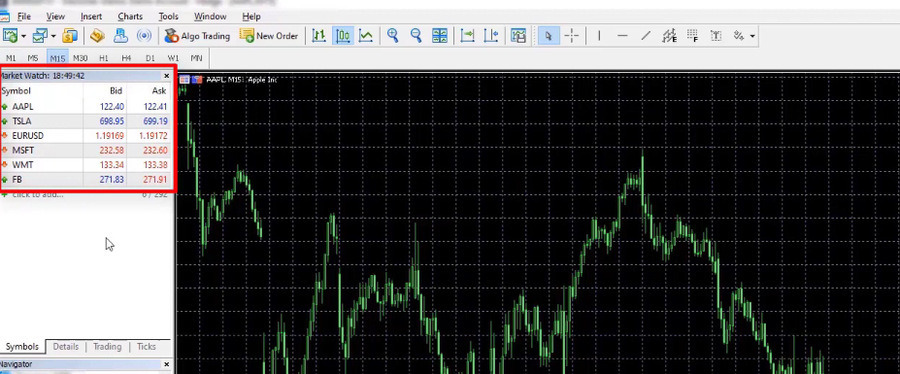
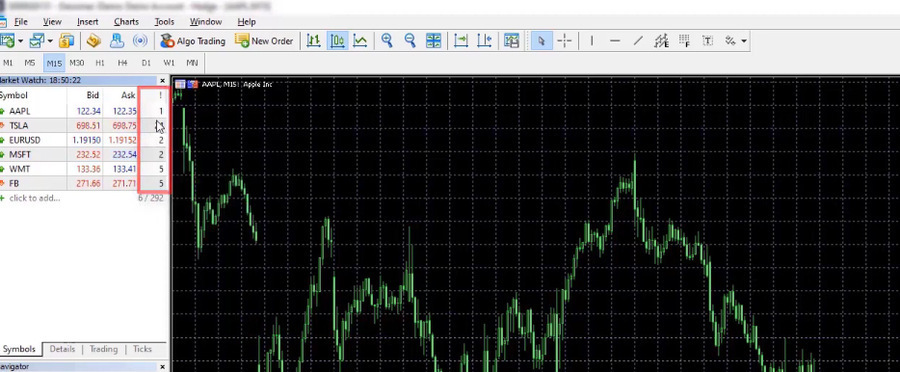
    The next thing that we will cover in this MetaTrader 5 tutorial for beginners is the Market Watch window. This is the window that is located just under the timeframes.

    The Market Watch

    And what the Market Watch window gives us is the symbols that we have selected to have in our Market Watch, the Bid price, and the Ask price.

    The Spread

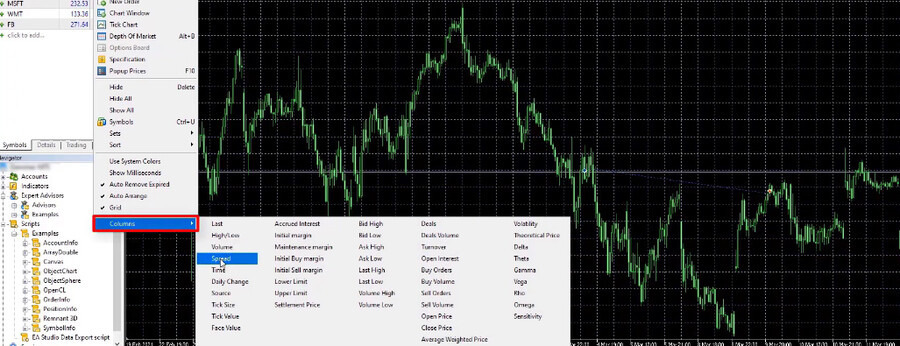
    Now, if you right-click anywhere, you get the menu, and then we’re going to select Columns. And then for the purpose of this MetaTrader 5 beginners tutorial what we will do from Columns is to select the Spread.

    We select Spread

    Now, what you’ll see is that we have an additional column that’s open on the right.

    An additional column showing the spread appears

    And this is giving us the spread, which is the difference between the Bid and the Ask price. This is the amount that the broker will take as a fee for trading on this particular asset or any one of these assets. Each one has a different spread.

    Navigator

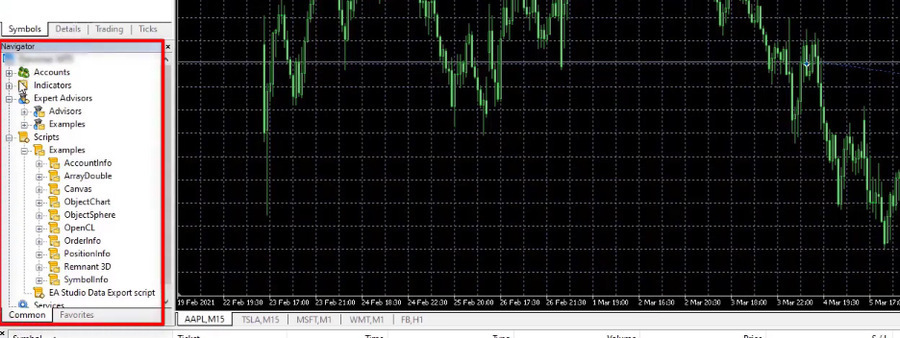
    Below the Market Watch, we have our navigator window.

    The navigator window

    And what you’ll see in the Navigator window is that we have our account information, the various indicators that are available to us. So if you had to put a custom indicator, it would appear here.

    Next, we have the Expert Advisors and we will, of course, get into that a little bit more detail in another lecture, where I will show you a tutorial on how to put the Expert Advisors into MetaTrader 5 and how to then attach them to your chart. And then below that, we have scripts and services and that’s about it.

    Where can we see the different asset specifications?

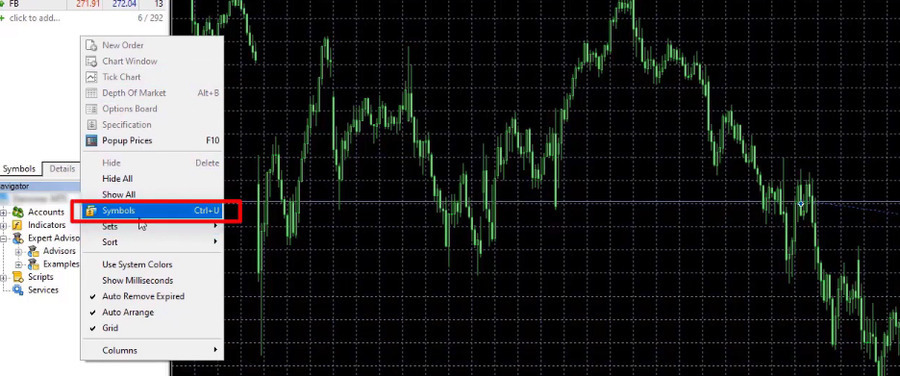
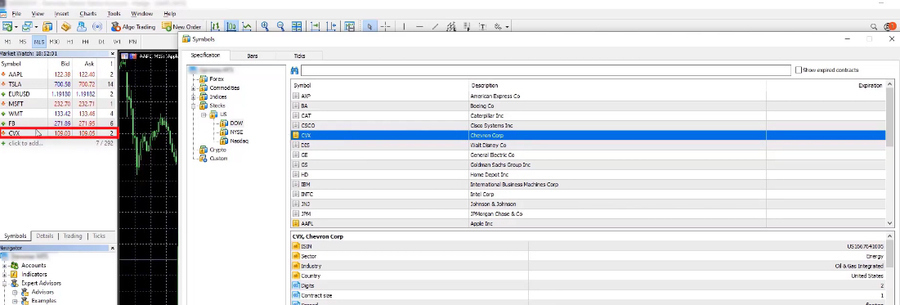
    One more thing I wanted to show you in this MetaTrader 5 tutorial, actually, guys, is that if you right-click anywhere on Market Watch, what you’ll see is that this menu pops up and we can then select Symbols.

    Select Symbols
    Select Symbols

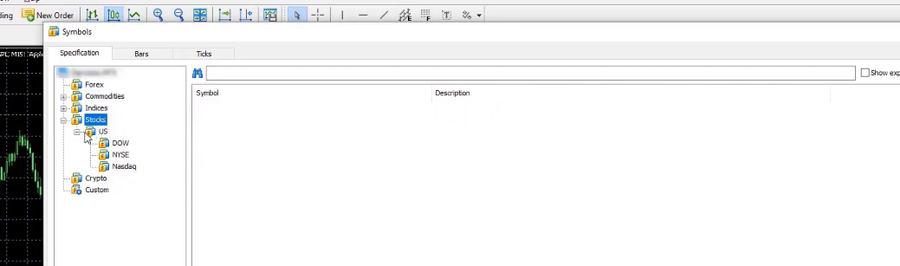
    And now under Symbols, these are the various symbols that are available to us.

    The various symbols available to us
    The various symbols available to us

    As you can see, we have Forex, Commodities, Index, and Stocks. And under Stocks, we have a few sub-items. In the US, this is what we’ll be using.

    So we’ve got the Dow, the New York Stock Exchange, and the Nasdaq. There is the Crypto, which gives you the various cryptocurrencies that you can trade using MetaTrader 5 platform with this particular broker. And then Custom, nothing in Custom at the moment. If you want to add one, it’s very easy. Let’s go to Stocks. I go to the Dow, for example. Let’s say that we wanted to add Chevron. All we do is double-click it.

    And what you’ll see is that the icon has gone gold. And what you’ll see is on the left in the Market Watch window, CVX, there it is now available for us.

    How to add a symbol
    How to add a symbol

    So we can now open a chart, we can add an Expert Advisor and we can actually use this top chart to trade this Stock.

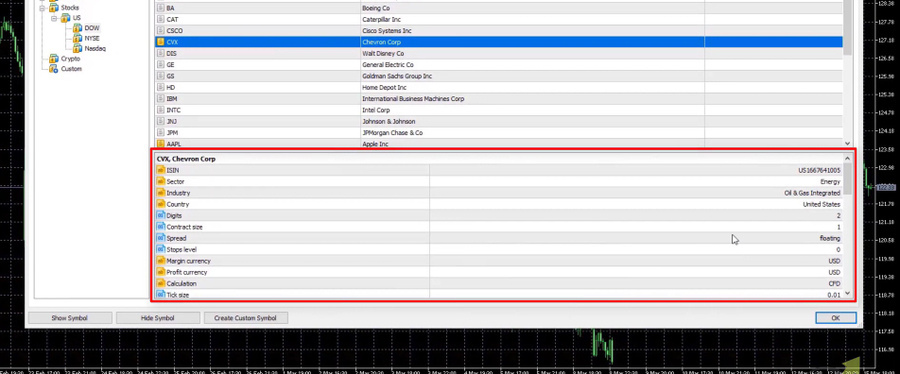
    Below the symbol, you’ll see that there is an information window and this gives you all of the various specifications on the assets.

    The information window

    It’ll give you the digits, the contract size, the spread, the margin currency, etc.

    All of the various specifications for this currency. This is quite important to know when we are generating and trading with Expert Advisors because we’ll put this information into Expert Advisor Studio. I’m just going to close that for a second.

    Chart window

    The next important thing to cover in this MetaTrader 5 tutorial for beginners is, of course, the main chart window.

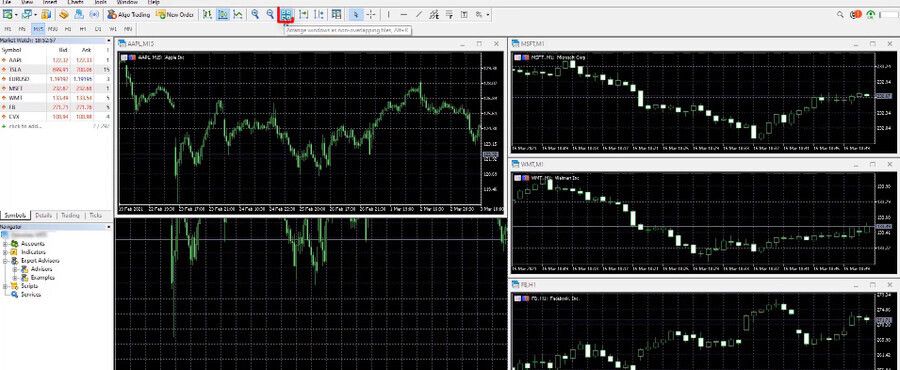
    Now, the chart I show you below is an AAPL, it’s an Apple chart. However, I do have 4 other charts open, so I have 5 charts. Each one is for a different asset. And if I want to see them all on the screen at the same time, I would simply go to Arrange windows button at the top, click on that and you’ll see MT5 will auto-arrange them.

    MetaTrader 5 Arrange chart windows tutorial
    Click on Arrange windows

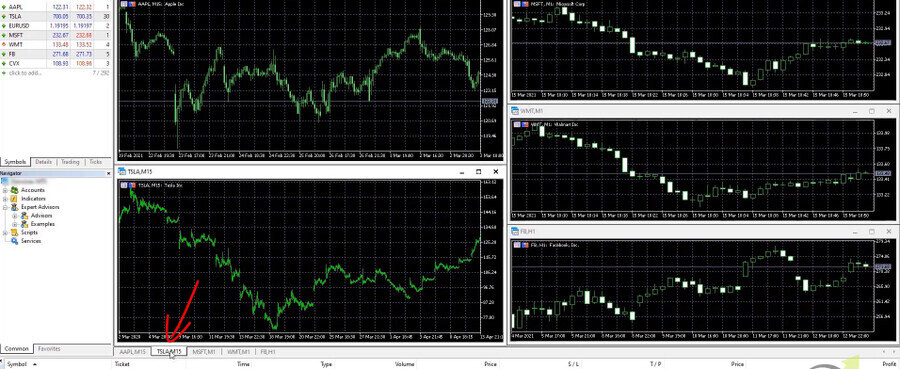
    If you double-click on the actual tab, so let’s say, for example, the Tesla, if I double-click on that, it opens up Tesla and if I double-click on it again, it’ll go back to the auto arranged view.

    Double-click on the tab

    MetaTrader 5 chart types tutorial

    The next thing is the types of charts. What we have and we had discussed it briefly, is the candlestick.

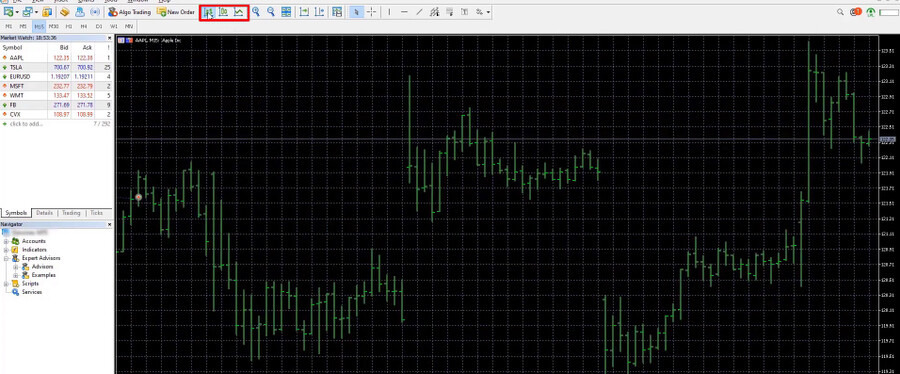
    We can, however, change this. I’m just going to make it a little bit bigger so you can see what I’m doing. So let’s just maximize it. On the top, we can make a bar chart by clicking on that and we still have the body and open, high, low, and close but not as visible as it is in the candlesticks.

    The bar chart in MetaTrader 5
    The bar chart

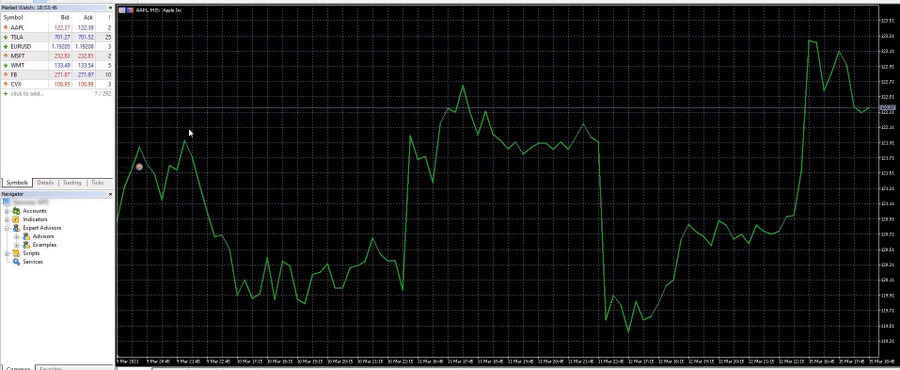
    And then we have a line chart which we never use, this just gives you a good overall view of what the price action was during a certain period.

    The line chart in MetaTrader 5
    The line chart

    But generally speaking, we’ll always keep it on candlesticks.

    So let’s zoom out there and change the chart again.

    Chart properties

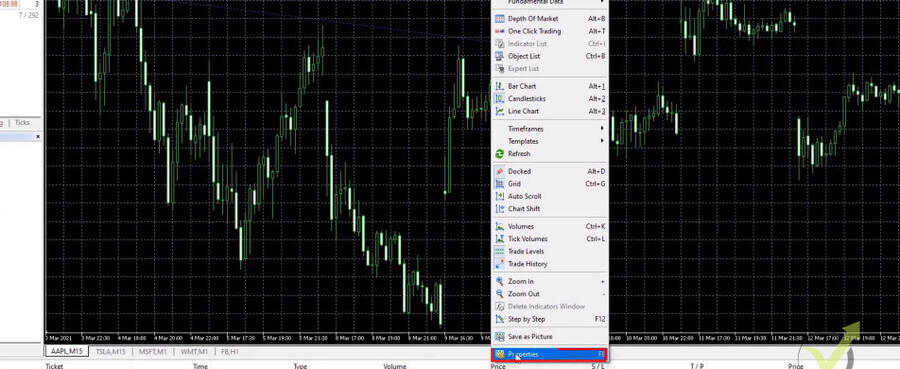
    The next thing we will cover in this MetaTrader 5 tutorial for beginners, is the chart property. So once you have a chart in front of you, you simply right-click anywhere on the chart and we can go down to Properties.

    chart properties
    Select Properties

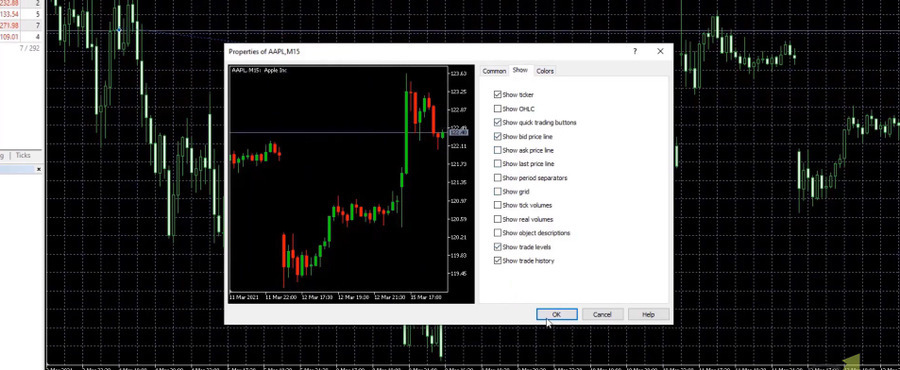
    From here, you can change various aspects of your chart. So, for example, we can go to the colors and make this bar up and bar down to the same color. So let’s make the bar up, let’s keep that green, and let’s make the bar down red, for example.

    And our bull candle, let’s make it green and the bear candle, let’s make that red as well. Then we’re going to go to Common. There is currently a grid. I don’t want that grid there. So what I’m going to do is, I’m going to remove it and we’re going to do that by going to Show. And from here, we’re going to unselect Show the grid. I click on OK.

    I click on OK

    And what you see is now my chart looks very different, I have customized it to the way that I want to do it.

    So very cool. You can really customize it and make it look like whatever you want, whatever you’re comfortable with, whatever will be easier for you.

    how the chart looks in MetaTrader 5
    My chart looks very different

    Trading Terminal

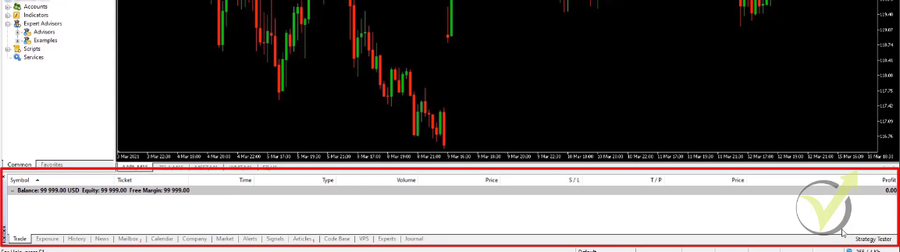
    Next, we have the Trading Terminal and that is this window that is below our chart.

    MetaTrader 5 Trading Terminal
    The Trading Terminal

    And on the Trading Terminal, what we have is the first tab, which is Trade. This will show you all of our trades that are currently open. We don’t have any trade, so that’s why there’s nothing here. Then we have Exposure but we haven’t made any trades on this MetaTrader 5 tutorial, so we don’t have any exposure at this point.

    Journal

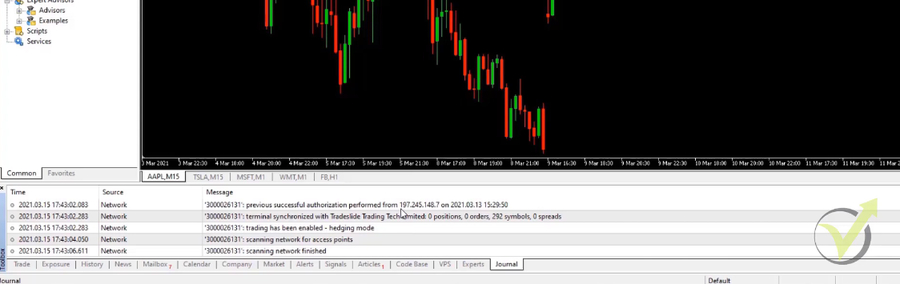
    Then we have History, News, Mailbox, Calendar, and Company. This is all stuff that comes from the broker. Alerts, if you’ve set up alerts, and Signals, if you set up signals. But importantly, the one that we can also look at a little bit later is the Journal.

    The Journal
    The Journal

    The Journal will show you everything that has happened, not just the trades that have opened and closed, but everything that has happened in your chart.

    So every action that you have performed from opening your chart to maximizing it. Basically, this is a log file but this will also show you the trades that have opened and closed. And we will compare the results to Expert Advisor Studio.

    So let’s go back to Trade. No trades are open.

    Drawing tools

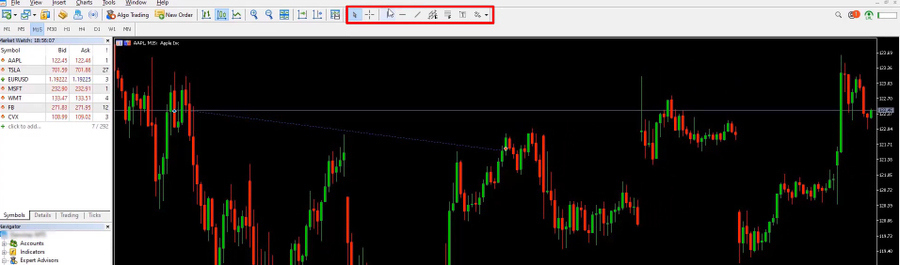
    The next thing we have is the drawing tools. As Algo traders, we don’t use these because the Expert Advisors do all of the work for us.

    MetaTrader 5 drawing tools tutorial
    The drawing tools

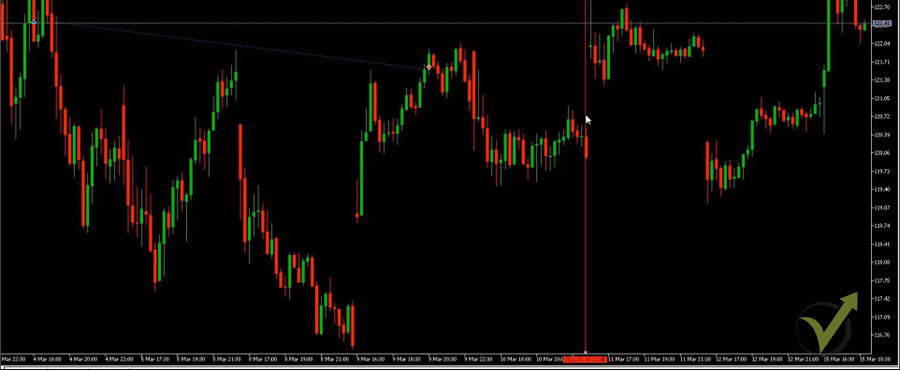
    But just so you get an idea of what they are, let’s say, for example, we have the vertical tool. So let’s say there was a point on the chart that I wanted to mark, let’s say, for example, where we have quite a big bull candle. So we’re going to click on that. You can see it’s not quite there. So what we’re going to do, because these little squares are at the top and the bottom, we are able to move it and edit it.

    So what we’re going to do is just put our mouse on it and just drag it to where we want it.

    The vertical drawing tool
    The vertical tool

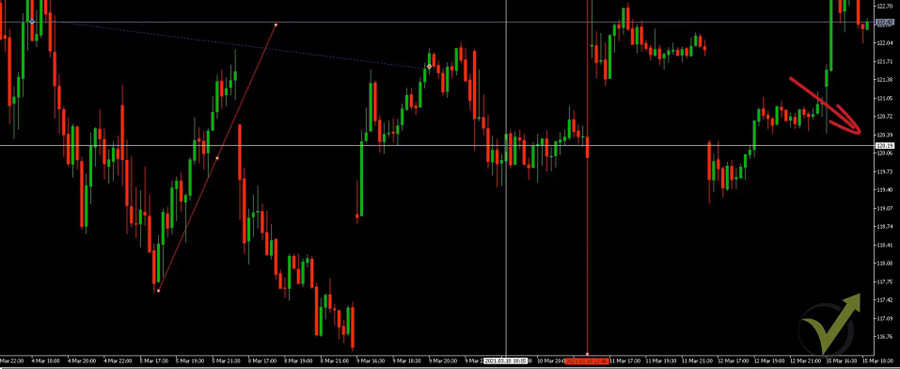
    And that gives us a break or it gives us a marker if we want to use it. We also have the diagonal tool, which is very similar, but this is really used more for drawing trends. So, for example, we had an uptrend.

    So if you wanted to do that and maybe if you wanted to enter a trade, for example, where this candle broke, then this is what you would use. This shows you a tradeline, it’s used for trade lines. And then various other tools.

    MetaTrader 5 tutorial – the crosshairs

    We have the crosshairs. And this isn’t a drawing tool, but this is a marking tool.

    So wherever you put the crosshairs, if you look on the bottom, it’ll show you the dates and the time, and on the right, it will show you the price of the asset at that exact time.

    MetaTrader 5 tutorial - the crosshairs
    The crosshairs

    Algo Trading in MetaTrader 5

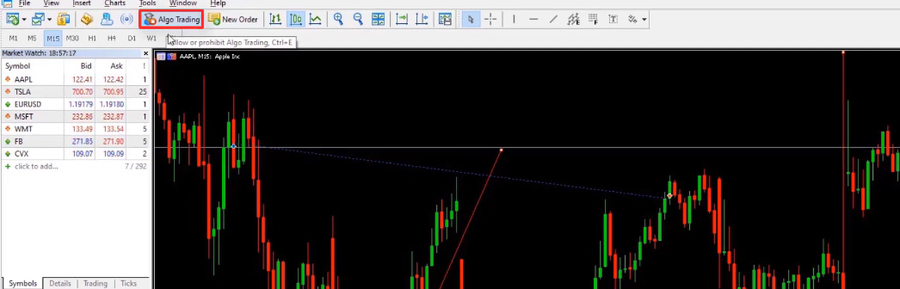
    We continue this MetaTrader 5 beginners tutorial with the Algo Trading button. This is obviously very, very important for us but we will discuss it when we place our Expert Advisors onto our chart.

    The Algo Trading button

    Now, Algo Trading has to be enabled. Currently, it’s in red, so it’s disabled, but this has to be in green before we put our Expert Advisors onto the chart.

    But like I said, I will show that in much more detail in another lecture, where I’ll show you how we place the Expert Advisors onto the charts.

    Final words

    So, guys, that is MetaTrader 5 tutorial for beginners in a nutshell. Don’t worry too much about the drawing tools and the vertical tools because you’re not really going to be using that with your algo trading.

    What is important is to understand the Market Watch, to understand what your Spread is, to understand how to add an asset. And again, what we’re going to do is just right-click. We’re going to go to Symbols. And from there you’ve got all the various symbols.

    So I hope you found this MetaTrader 5 tutorial informative. As always, if you have any questions, please feel free to ask me in the comments below and I’ll be happy to answer you.

    Thank you for reading. I’ll see you in the next lecture.

    Leave your email below to receive the free MetaTrader 5 PDF tutorial guide.

  • Exodus Wallet Review

    Exodus Wallet Review

    In this article, we will be doing our own Exodus wallet review. We hope that it will help the readers to get a complete, total, and dispassionate idea about the cryptocurrency wallet.

    When we refer to a cryptocurrency wallet, we are referring to a device, a software program or a physical medium, or even a personalized service. The main objective of these wallets is to ensure that the cryptocurrency holder can store the keys. Hence, it would not be wrong to mention here that a cryptocurrency wallet also helps in acting as the storage space for sign-in-related information and encryption of the confidential information of the customers’ cryptocurrency account.

    A Comprehensive Exodus Wallet Review

    However, with so many options available, making the correct choice of a cryptocurrency wallet is not easy. It can happen only when the buyers do the right research and go through the desired due diligence process. Those who conduct such reviews have reasons to believe that there are many things positive as far as Exodus wallet review is concerned. In other words, they have many positive things to say as far as the Exodus wallet is concerned.

    This particular Exodus review will also help readers to compare this crypto wallet with other such wallets in the market and get to know whether this particular wallet is worth being put to use.

    The Exodus wallet review that the readers are going to come across over the next few lines is an honest attempt to cover almost all areas of operation. We hope this review will give you a reasonably good idea about the Exodus crypto wallet and help you to make a decision based on facts instead of opinions and hearsays.

    What is Exodus All About?

    When we refer to Exodus and based on various Exodus wallet review articles, there are a few things that come to our mind.

    This is basically a crypto wallet where you can store cryptocurrencies. Further, it is unique and versatile because it supports more than a hundred different crypto coins. This is not only based on many Exodus wallet review articles but also based on inputs from experts who have a reasonably good idea about the various aspects of crypto wallets.

    Though this crypto wallet was previously available only to desktops, it now is also available for Android and iOS. This is a big breakthrough and a milestone in more ways than one.

    Further, if readers and prospective users of crypto wallets take some time off and concentrate on some reliable and trusted Exodus wallet review articles, a few more things will fall in place.

    For example, Exodus is considered quite different from many other crypto wallets because it has an easy-to-use design feature. This is a boon for people who are not used to using cryptocurrencies. This is because the design features have been kept with new users in mind. Further, the developers also have spent a lot of effort and time taking care of the user interface. They make it customer-friendly as well as intuitive. Hence, irrespective of the positive Exodus wallet review articles, the fact of the matter is that the experts firmly believe that it has some of the best user-friendly design features.

    The creators of Exodus

    While the next few lines will deal with the Exodus wallet review in some depth, let us briefly explain a few things about the creators of this wallet for cryptocurrencies. These are Daniel Castagnoli and JP Richardson. Richardson has years of experience writing code for many of the cryptocurrency products that are available in the market now or even a few years back. On the other hand, Castagnoli has rich experience having worked in some big companies like Nike, BMW, and Apple in various capacities.

    It supports various altcoins

    There are a few more reasons that contribute to the growing popularity of the Exodus crypto wallet. Many independent crypto wallet reviews corroborate this. Yes, Exodus crypto wallet has the capability of supporting different types of altcoins and Bitcoin.

    Additionally, this wallet can also be used for the purpose of exchanging one crypto for another and this can be done without the hassle of registration and other such problems. Many Exodus crypto wallet review articles that are popular for their impartiality and honesty point to this.

    It also would be pertinent to mention here that Exodus has been using SPV or Simplified Payment Verification. In other words, this technology does not require the users to fully download the entire blockchains. Instead, they make a series of servers that help in tracking wallet balances and helping in other such things.

    Interfaces and How Easy Are They to Use

    If you scroll through more Exodus crypto wallet review articles, you also will come across a few more things. Many people who are contemplating trying out Exodus are happy with the fact that this is a cross-platform app. In other words, it can use it on Mac OS, Linux, and Windows. Further, there is no need for registration. You simply download and install the application and the wallet is ready for operation and use.

    However, there is some expert Exodus crypto wallet review feedback that worths mention. The wallet does not have two-factor authentication. It relies on only one password and this is something you need to keep in mind.

    Exodus wallet two-factor authentication

    It also stays away from using other new and technologically advanced authentication mechanisms. These are popular as multi-signature addresses. Many experts and those who are into Exodus crypto wallet review articles are also not very happy about it. When you have a multi-signature address feature, there is a need for permission from more than one device. Only after this permission, the wallet initiates the transfers. This certainly adds to the overall safety attributes of any cryptocurrency wallet. This again is a point that the creators of this wallet must keep in mind.

    Intuitive and Inviting

    However, based on many reliable and trustworthy Exodus crypto wallet review articles, there are a few more positives about this crypto wallet. Overall the app is extremely intuitive and inviting. This is no mean achievement because of a few reasons.

    To begin with, the app offers both portfolio management services as well as a cryptocurrency exchange. Further, you can use it to manage, store, and trade various cryptocurrencies using one single interface. This feature also has won many positive mentions from the various Exodus crypto wallet review articles.

    Navigation is Easy

    Let us also have a look at a few more positive attributes as far as Exodus Crypto Wallet is concerned. The app comes with a number of icons and these are located at the top of the interface. These icons are clearly visible and they are comfortable and user-friendly. This is because they help the users to easily navigate through the various functions.

    For example, if you look at some reliable Exodus crypto wallet review posts, you will find a mention of the Portfolio icon. It is useful for those who need a complete overview of the various cryptocurrencies and other relevant information. These include information about price movement over different time frames and time zones. This is again available for different assets.

    The wallet section is also worth mention because of a number of other reasons. The wallet section is worth looking at from close quarters. It has many features and it also has facilities to receive and send cryptocurrencies. You can achieve this with the help of a QR code or by making use of various wallet addresses.

    Easy Trading Between Cryptocurrencies

    Further, the various Exodus crypto wallet review articles also outline the QR code scanning facility. This is achievable thanks to the various wallet addresses that are available. Another feature worth mentioning is the exchange tab that allows easy trading between cryptocurrencies.

    Easy Trading Between Cryptocurrencies

    The use of the apps also comes with some new features. These are popular as plugins. Exodus goes a long way in adding improved functionality to the entire crypto wallet. For example, they could come in handy when there is a need to calculate the interest that has been earned on the various cryptocurrencies that you own, trade, and use for making payments and also for receiving payment. Hence, as far as the icons are concerned, almost all Exodus crypto wallet review posts have given it a thumbs-up because of some obvious advantages and benefits.

    Transfer of Funds

    Let us now spend some time looking at the fund transfer facilities. To begin with, it comes with a default feature. The default feature does not lock the Exodus wallet. However, once a deposit into the wallet has been made the wallet automatically gets locked. It can be opened only by the wallet owner after signing in with the right keys and password. A look at a few more Exodus crypto wallet review articles will throw some more light on the ways in which you can receive crypto.

    If you want to receive crypto, you have to switch over to a wallet tab. Once you select the tab, the next step is to select the particular cryptocurrency that you want to deposit in your account. This feature also allows the users to have a look at the price chart of the specific cryptocurrency. Once you are sure about the price and would like to go ahead with the transaction, all you have to do is to click copy. This will enable you to receive the specific address for the wallet. The wallet also allows the feature of emailing the address. Or take a screenshot of the QR code. Once done the sender will be able to scan it from their own devices. All these make receipt and transfer of funds easy. This is not based on any expert opinion but many Exodus crypto review articles also corroborate this.

    Password Protection

    Further, the wallet also has one more feature that sets it apart from many other such wallets. Once the wallet receives the first deposit, Exodus will ask the owner to ensure that the wallet has password protection. The app makes use of various videos and documentations and then suggests the use of a suitable password manager app. You can choose the right app to protect your password. This again is a prudent practice and most Exodus crypto review sites and other sources of information have spoken positively about this.

    Password Protection

    The technology also helps to display a 12-word phrase. This will help the users to recover the password in case there is a need. The developers also suggest that the users should make a note of this phrase in case they are keen on keeping it as a part of offline storage instead of having it stored on a computer. This could be helpful for those who still believe in storing the password externally. Many conventional Exodus crypto review posts have been quite impressed with this feature.

    Exchange Various Cryptocurrencies

    In the same way, the process of transferring funds is also quite easy, user-friendly, and intuitive. Let us have a look at this aspect based on product features. We will also take into account the various Exodus crypto review feedback posts. All that users have to do is to click on the send button. Additionally, the users have to enter the address of the wallet to which they would like to transfer the crypto. You also have one more option and many Exodus crypto review writers who have been able to identify this deserve a word of praise. They have found out the method of hovering around the QR code option. This helps them either scan the code using a webcam or doing it directly from your screen if you are using a personal computer or laptop.

    Exodus also allows easy exchange of various types of cryptocurrencies. For exchanging you have to move to the exchange section and make use of the available Receive and Exchange Pull-Down menus. This helps you to zero in and then select the right cryptocurrencies that you wish to exchange. This feature is also quite interesting and user-friendly. Hence, when we have a close look at the transfer features of Exodus, we have to agree with most Exodus crypto review articles. They are smooth, they happen easily and they are intuitive.

    Support Services

    Support services are an important factor that one should keep in mind when choosing any good crypto wallets. Based on reliable Exodus crypto review posts and information, there are enough reasons to believe that this service provider has been able to offer the best possible services at all points in time.

    When it comes to both types of transactions, i.e. receipts and payments, Exodus has some well-thought-out support services to offer. Let us look at what they offer. This information has been extracted based on various Exodus crypto review items and feedback available on the internet.

    To begin with, Exodus has a system by which one can display the required information and they do this keeping in mind the need for utmost transparency. For example, when there is a need to receive or send crypto, the wallet has the facility of displaying the fees that will be charged for such transactions. The owners will have reasons to feel satisfied that the fee payable for both receipts and payments is perfectly transparent and in line with the best practices. Hence, we find that the various Exodus crypto review inputs on this subject matter to be true in most cases.

    Well-Organized

    Exodus also gives full details about the fee structure. We have come across some Exodus crypto review from first-timers who are quite happy about the various categories such as purchasing cryptocurrencies, selling, exchange, and much more. They also have provided a search bar in case you want to get some information quickly and speedily.

    If you can’t find an answer to your question, you can escalate matters further and send it across to the support team. However, it would be pertinent to mention here that they do not have any telephonic support. Therefore, if you find any online information that talks about telephonic support from Exodus then you can be reasonably sure that it is from a scammer. If you look at a few quality Exodus wallet review Reddit posts you perhaps may be able to get more information about it.

    Safety

    Safety is another important point to keep in mind when it comes to choosing a crypto wallet. Though there are some issues with regard to the safety factors, many reviewers and experts believe that these are exaggerated and overstated. On the whole, the wallet offers safe and trouble-free buying and selling apart from receiving and sending cryptocurrencies across the board.

    The security system is being upgraded regularly. There are enough reasons to believe that things will become even safer in the months and years to come. However, there is one thing that is clear about safety. There are enough Exodus wallet review articles on Reddit to prove that the safety aspects available in this wallet are up to the mark. There is no way that the interests and safety of the customers have been compromised under any circumstances or situations.

    Safety

    Backup features

    Back features also form a part of the safety and security attributes of any crypto wallet. Hence, based on various Exodus wallet review Reddit articles it would be a good idea to know something more about this attribute.

    If you fear that you can lose access to the Exodus Bitcoin wallet available on your computer, there are reasons to reassure you on this factor. Many Reddit posts are testimony to this. They will still be able to access the cryptocurrency. There are two ways of restoring and getting back your invested cryptocurrencies. While you will get a better picture of this while going through a good Exodus wallet review Reddit post, we are happy to share the ways by which you can achieve it.

    The first method is to use a standard passphrase of 12 words. Clients receive it at the first instance when they create the account. They have to store securely this passphrase. Many quality Exodus wallet review Reddit articles talk about the importance of storing this 12-word passphrase securely and safely.

    In case this option fails, then they have the email restore option. When the user opens an Exodus wallet account, he has to provide a valid email account. Exodus responds to the email and in the reply, they will send you a backup link in case you lose the password or if the wallet account gets locked. You can use this link to restore an account. This also has been very well explained and talked about in many Exodus wallet review Reddit posts and other such articles.

    Hence, whether one goes through the design features or refers to the various Exodus wallet review Reddit posts, it is quite obvious that restoring an account is very much possible. The above two options should be good enough to make this possible.

    Final Verdict

    On the whole, there are enough reasons to believe that Exodus is a well-thought-out and constructed crypto wallet. It has been around for a few years now. The various Exodus wallet review Reddit inputs that we receive from various sources are more or less unanimous about one thing. This wallet scores are quite high on various vital aspects for customers.

    However, there could be a few issues with regard to security and two-factor authentication that is missing. These are a highlight in many quality Exodus wallet review articles on Reddit. We are quite sure that the developers of this wallet must be aware of this and will certainly take steps to ensure that the twin-factor authentication system must be put in place. However, the security features available now are quite secure, safe, proven and time tested.

  • DOGECOIN Price Prediction 2021-2025-2030

    DOGECOIN Price Prediction 2021-2025-2030

    In this lecture, we will try to make a future price prediction for Dogecoin for the period 2021-2025-2030.

    It’s incredible that there is a cryptocurrency that is this popular and still there are debates on how the name should be pronounced. Should it be Dodge coin or Dodgy coin? I’d probably call it Dodge coin. But that’s not really important though.

    What’s important is that it made many people rich. I will tell you what a realistic price prediction for this sweet coin is. And I forgot that it also made many people poor like me because I didn’t buy any ;(

    Dogecoin price prediction

    Today, I will share with you what my price prediction is for Dogecoin. I will go over the pros and cons we have with the coin and what you need to know before jumping into it. You will see the info that Dogecoin was created as a joke on most of the exchanges.

    That’s what its creators Billy Marcus and Jackson Palmer said and I’m sure they never expected their fun token to reach above 40 billion market cap.

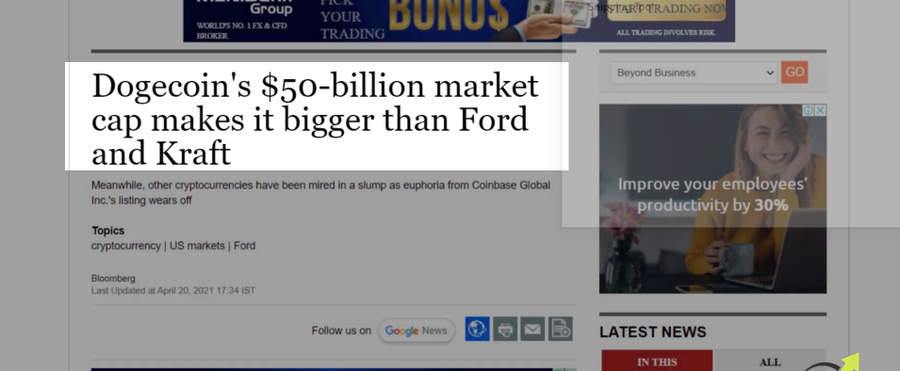
    Dogecoin surpasses the $40 billion market cap

    When was the Dogecoin created?

    So the Dogecoin was initially created in 2013 and it was forked from Litecoin. It’s been used primarily as a tipping system on Reddit and Twitter to reward the creating or sharing of quality content. So you may be asking why I am creating this lecture now.

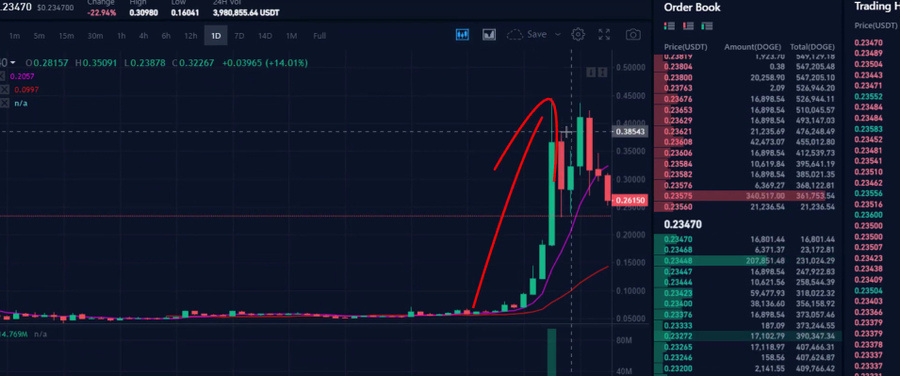
    Well, because at the beginning of April, the Dogecoin price was at 5-6 cents and last week it reached 42 cents. Tell me you expected that and I might actually believe you, honestly.

    Now, what are the pros and cons?

    Pro #1, it’s much easier to move the price of a super cheap coin a few cents and at the same time, its market cap becomes a few billion dollars. Not like a coin that sits at 55k and its market cap is above $1 trillion. And it looks like the GameStop Revolution is live now in the crypto world as well.

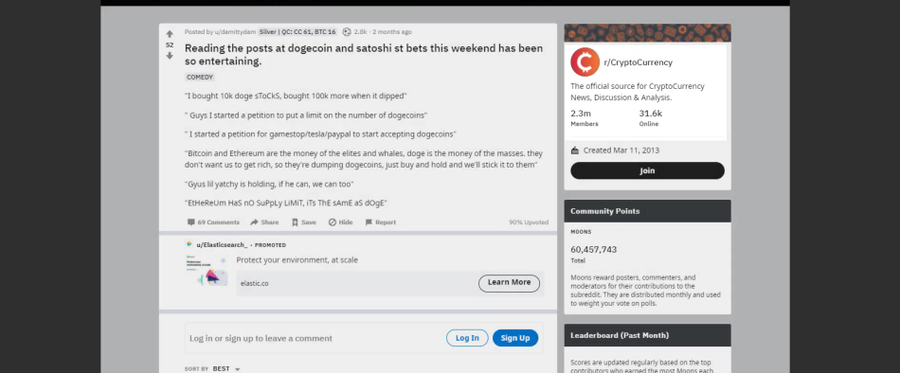
    Even the Robinhood website crashed a few weeks ago because of the huge interest in Dogecoin. Also, there are already groups of people that want to pump the price higher such as the Satoshi Street Bets and if a group of this size organizes the pumping of the price of a small coin, they can actually make it happen.

    The Satoshi Street Bets is interested in Dogecoin

    The big players can crash the prize

    But you have to be extremely careful here because, by the time you join, it might already be too late or their target might be impossible and you might end up buying it when it reached its maximum and the big guys are selling it.

    And here comes the first concern, the top 100 wallets control 68% of all Dogecoins.

    And there is the mystery of one player who controls 28% of all coins.

    Dogecoin biggest shareholder owns 28% of the Cryptocurrency

    That is one of the biggest problems with all small coins because if the huge guys decide to crash the prize, they can easily do it. And one day when everything looks wonderful, the birds are singing outside, you are already on a profit, Bitcoin is supporting all the crypto market with bullish movement, your coin will drop. You can’t understand how everything went wrong.

    This is absolutely possible because the big wells of Dogecoin can decide to take their huge profits and all the small guys will carry the losses. This is why I personally prefer to invest in coins that are not dependent on a few people’s wallets.

    If you want to know my current real investments and how I diversify my risk between Bitcoin, Ethereum, and all the rest, check out my crypto portfolio, and you will see that I am the one that holds 28% of all Dogecoins (I’m kidding of course 😀 ).

    This is something else you need to keep in mind, we don’t know who is this 1 person owning 28% of the Dogecoin. It could be an exchange like Binance or Crypto.com. And in this case, it is not a concern because we would assume they bought it super cheap to supply to their clients at a later time.

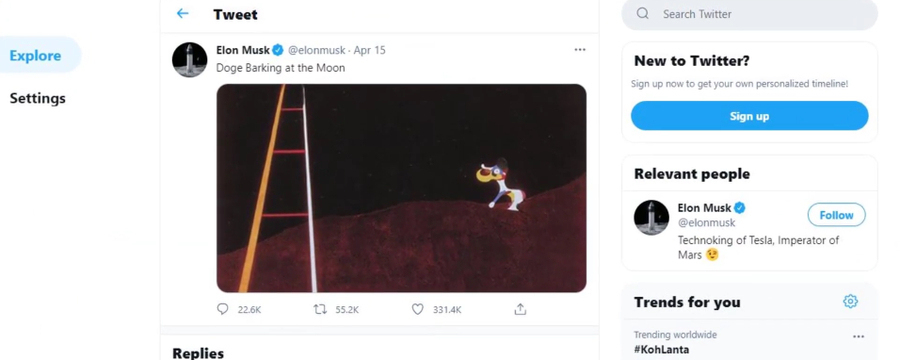
    On the other hand, it could be the one and only Dogecoin star on Twitter, Elon Musk himself. He has been supporting the coin for quite a long time, doubling and tripling its value with single tweets. This is the second pro.

    Elon Musk tweets regarding Dogecoin

    Popular influencers like Elon Musk and Mark Cuban who said he had bought some Dogecoin for his son because it’s educational, just makes it popular.

    Because when these wealthy guys tweet something, a mass of people reacts. And why not? There is currently no law or regulation that restricts Elon Musk from tweeting about Dogecoin. He even said that he’s going to move Dogecoin to the literal moon. Now, there were so many interpretations of what he actually wanted to say. But it pushed the price even higher which matters the most.

    My Dogecoin price prediction

    Going to concern #2 is that the supply of Dogecoin is infinite. The block reward is 10,000 and the block time is 1 minute. You can do the math for a day, a month, or a year. However, it turns out that even if the supply is infinite, the desire to own a Dogecoin is huge. And from my trading perspective, if the price is going up, then it’s going up. It simply means that the buyers are stronger than the sellers. If you took the chance and doubled your accounts a few times, then well done.

    Pro #3, this could be just the beginning for Dogecoin. This is because it is not listed yet on some huge exchanges like Coinbase.

    Coinbase

    As we already know, when Coinbase lists a coin, it usually pumps the price extremely fast. This is because of the expectation of all clients of the exchange that are ready to buy as soon as it’s there.

    It’s like they didn’t have the chance to buy it elsewhere until the moment. So what is my Dogecoin price prediction? Just this April, it increased from 5 cents to 42 cents, guys.

    Dogecoin price prediction in April
    Dogecoin increased from 5 cents to 42 cents just in the month of April

    This is 600%, 700% in less than a month. Yes, it can absolutely increase by another 200% to 250% in the next months or years. So my first Dogecoin price prediction is the dollar and it’s super realistic in my opinion because of what we’ve seen so far.

    Dogecoin price in the period 2025-2030

    And once it’s above the dollar, more people will be buying it because they will realize that Dogecoin is stronger than the American dollar. Can you imagine that? When the round number is reached, the Doge buyers will definitely target the $10. Which I think is very achievable but not in the short-term. This is a more suitable prediction for the Dogecoin price in the period 2025-2030.

    Having an infinite supply will make it hard for Dogecoin to reach $10. Unless Elon Musk really sends the Doge to the moon, literally.

    So keep in mind the pros and the cons that I mentioned in the lecture. And be sure to share your realistic Dogecoin price prediction in the comments below.

    Thank you guys for reading this price prediction. I will see you in the next lecture.

  • How to Choose the Best Stock Trading Broker

    How to Choose the Best Stock Trading Broker

    Before we actually start trading on the stock market, it is very important to choose the best broker for our needs.

    Like with every other business, there are scamming websites, scamming stock trading brokers that are ready to take your money. And usually, these are the brokers that will start calling you on the phone. They will ask you to deposit money, will tell you what is the upcoming IPO, what is the best opportunity to invest at the moment. All they want is to take your money.

    And what usually happens is the people never see their money again. These are the so-called scam brokers, which you need to stay away from when trading. You should always be very careful when you are choosing your stock trading broker.

    Is your stock trading broker regulated?

    In many of my courses and videos, I show that I usually deposit some money with the broker. A small amount, let’s say $100 or $200. Then I withdraw them back to make sure that the website is trusty.

    scam stock trading broker will ask you to deposit money instantly

    So the first important thing is for the stock trading broker to be regulated. There are different regulatory companies in different countries. We collected some trusted and regulated stock trading brokers. So always make sure that your broker is regulated.

    Don’t take the brokers we use or review as a recommendation

    And secondly, always test the stock trading broker with a small amount before you fund an account with a huge amount and then find out that actually, that was the wrong broker.

    Now, the next important thing is to find a stock trading broker with low commissions. I usually avoid suggesting any brokers in my courses, and quite often I ask my video editor to hide the broker name in my videos.

    I don’t want anyone to accept any broker as a recommendation. Because if I tell you I’m using that broker right now, it’s a very trusty one. By the time you’re watching that video, this broker could be gone, no more on the market. Or they can change their commissions. And actually, it happens all the time. The brokers change their trading fees, commissions, all their conditions.

    The best thing to do is every 3 or 6 months to look around for a new, better stock trading broker that you can use. And of course, if you are looking into stock trading or stock investing, seriously, you better keep your stocks and funds in a few different places. Same thing with cryptocurrencies. I always keep them on few different crypto wallets so I don’t put all of the risks in one basket.

    Let us know if you need assistance finding a stock trading broker

    Now, the thing with these no commission brokers is, usually, they offer stock trading or investing via mobile app, and I do that as well. I have a few accounts with different brokers from where I buy and sell stocks from the phone. Probably I’ll be recording some more courses in the future about that as well.

    But when we are talking about trading with Expert Advisors and robots, algorithmic trading, you need to have the MetaTrader platform. So when you are choosing your stock trading broker, make sure they offer stocks on the MetaTrader platform so you will be able to trade with the robots. And if you have really hard times finding a stock trading broker, let us know in the comments below. We will give you always some names, but one more time, that’s a personal choice.

    The broker you use is a personal choice

    Always do your diligence, do your research, talk with some experts in the field, so you can choose a trusty and regulated stock trading broker. And most importantly, the broker that will make you feel comfortable while you are trading or investing with that broker. If you would like to know which are the brokers that we currently use, we have a page on our Academy’s website called Brokers.

    Trusted Forex Brokers Reviewed

    And there, we keep like the top brokers we use at the moment. So my team always does the research for the brokers and we do detailed reviews about the brokers. But one more time, not a recommendation. This page is just for the people who have no idea from which broker to start. So we have listed a few brokers that you can choose from.

    But at the end of the day, it’s your decision and you should make the choice of the right and trusted stock trading broker for yourself.

  • Tesla Stock Trading Strategy

    Tesla Stock Trading Strategy

    In this lecture, I will show you a trading strategy for Tesla stocks.

    I can talk about Tesla a lot because I like the idea. I think what they did was just a revolution with electric cars. They’ve been on the news a lot in the last couple of years because of the Tesla stock price. However, Elon Musk became one of the richest people because of Tesla.

    Tesla Stock Trading Strategy

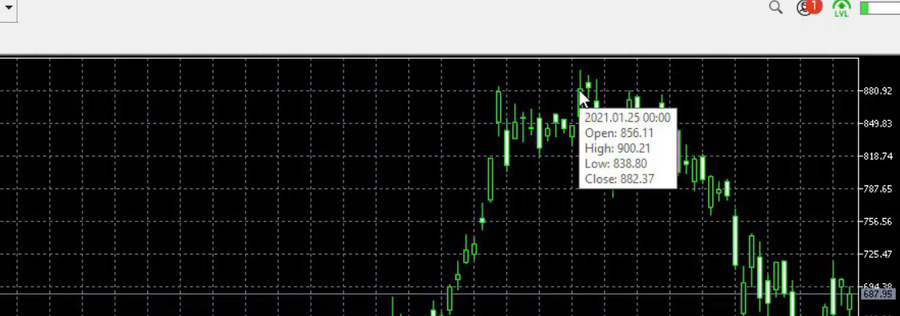
    Probably by the time you’re reading this lecture, he will still be in the top 10. I don’t know, it depends on what will happen. But the highest price Tesla stock reached in January 2021 was $900.

    And it just bounced out of there and dropped to $538, which is actually a huge drop. So imagine how many people have bought Tesla right at this level. I bet many.

    The highest point Tesla reached in January 2021
    The highest point Tesla reached in January 2021

    And they are suffering losses at the moment. But these are the people that are actually investing. Again it doesn’t really matter for our Tesla stock trading strategy where are the prices because we are trading down on the M15 chart, we hold the trades for a few days maximum.

    The buy and the sell signal

    So now the chart will become very colorful. I will try to make it a little bit simpler with the thickness of the lines but you will see what I mean.

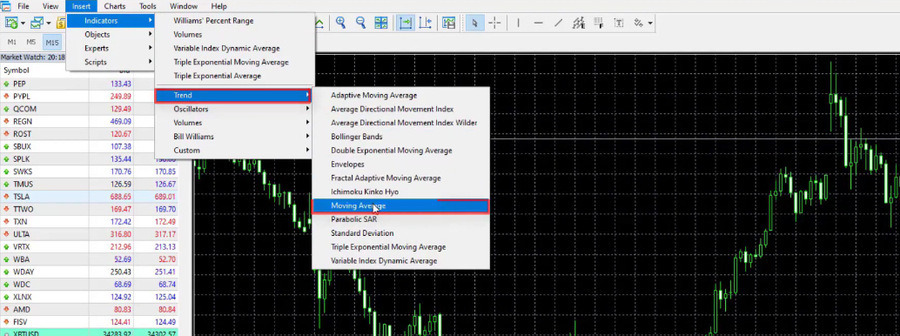
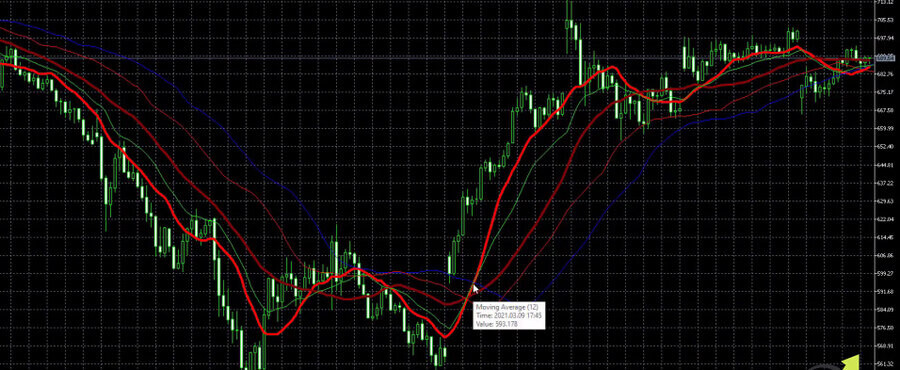
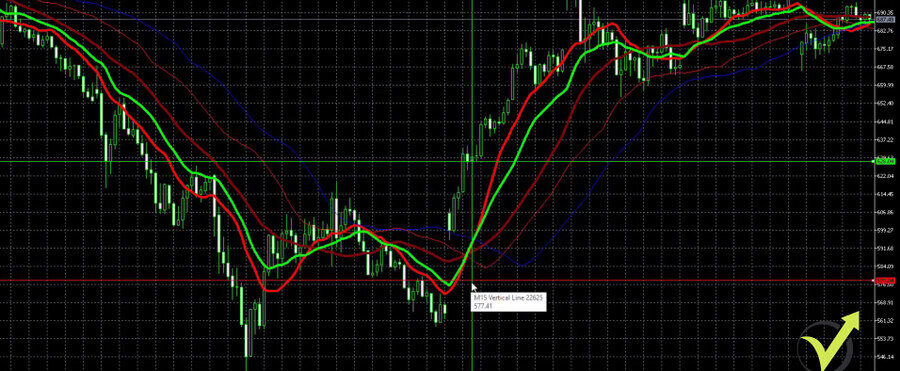
    Now, the first indicator in this Tesla stock trading strategy is the Moving Average Crossover. The fast-moving average crosses the slow-moving average upwards. So I will put 2 Moving Averages on the trading chart. They are located inside the trend indicators in MetaTrader.

    How to insert the Moving Average in MetaTrader
    How to insert the Moving Average

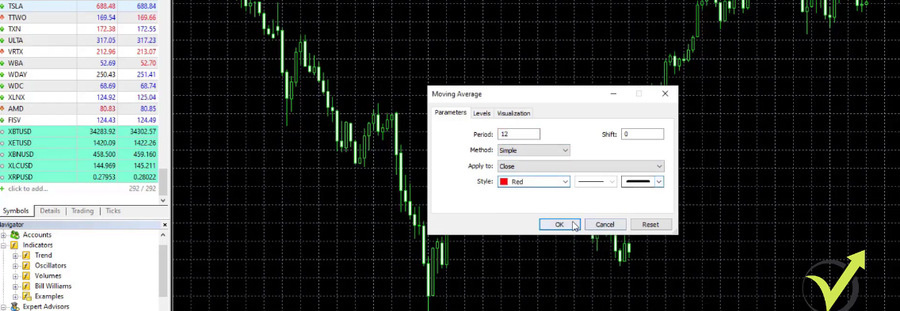
    So the first one is with a period of 12, I will make it red again. I will keep it thicker, I will click on OK.

    I click on OK

    Then I will add one more, which will be slower, period of 30 but I will make it just a little bit darker red and I will keep it thicker.

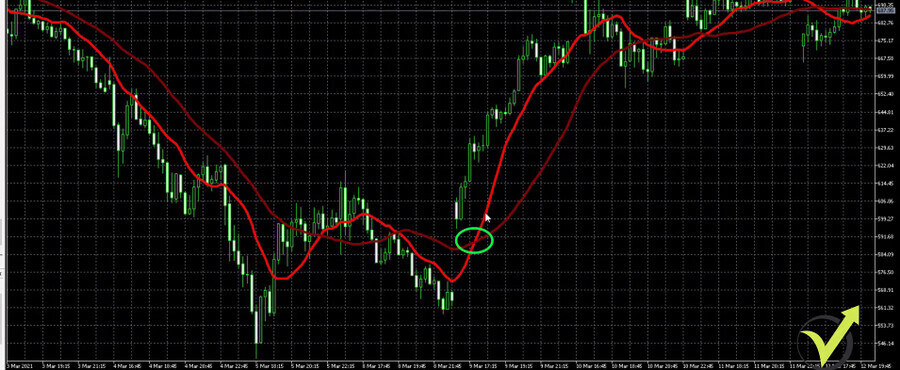
    So when the fast moving average crosses the slow moving average upwards, we have the buy signal and when it crosses downwards, we have the sell signal.

    The buy signal
    The buy signal

    For example, we have a very nice sell trade crossing here. So all of that goes on profit. Then we have buy, sell, buy, very nice trade. And then the prices go sideways.

    The indicator properties for Tesla stock trading

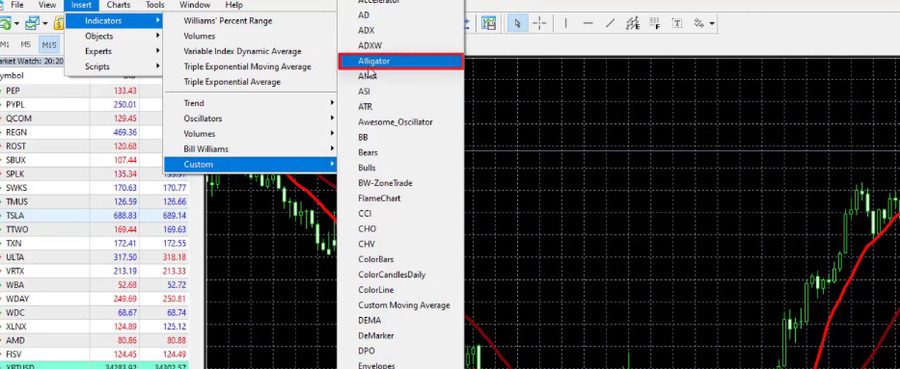
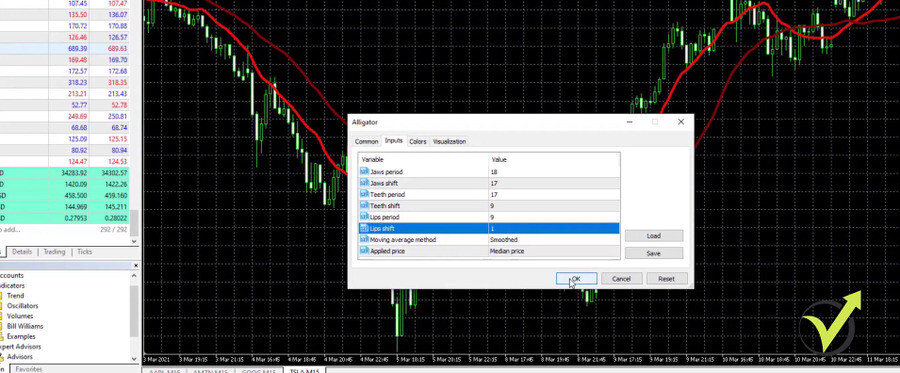
    Now, the thing here with this stock trading strategy for Tesla is that we have one more indicator for confirmation to buy or sell. That’s the Alligator. If you already know the Alligator, you will know why I say that the chart will become colorful. This is because the Alligator has many lines.

    The Alligator indicator is located inside the custom indicators in MetaTrader.

    How to insert the Alligator indicator
    How to insert the Alligator

    And I will go to Inputs. So here I have some work, Jaws period I will change to 18. The Jaws shift, I will change to 17, the Teeth period, I will change it as well to 17. The Teeth shift I will change to 9. The Lips period I will change to 9 and the Lips shift I will change to 1. And I will just click on OK, so we can see what will happen.

    I click on OK

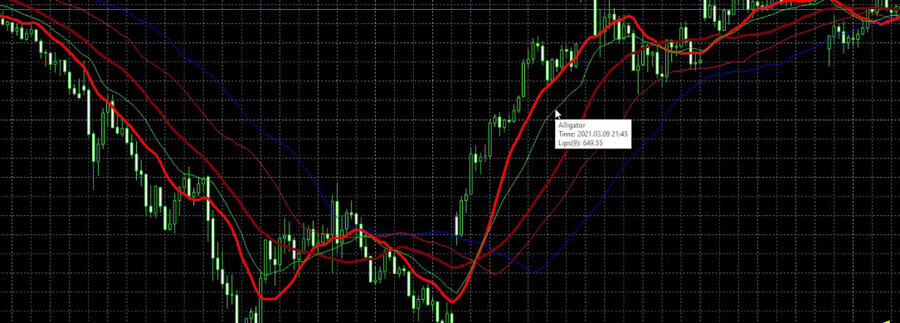
    I just see 3 more lines were added to the chart.

    3 more lines are added to the chart for the tesla stock trading strategy
    3 more lines are added to the chart

    This is the green line, the red line, and the blue line, which is not very visual. Now for the Alligator, there are so many different trading strategies. I am not going into details but what matters for this Tesla stock trading strategy is, that we want to see the Lips rising so they confirm the cross of the moving averages that we already placed. So the Lips of the Alligator is actually the green line. If I put the mouse on it, you will see that it says Lips.

    The Lips
    The Lips

    So I will right-click one more time on the properties of this indicator. I will go to colors and Lips is with lime color, which is just fine. And what I will just do is to make it thicker so we can see it better. I will click on OK and it is now visual enough.

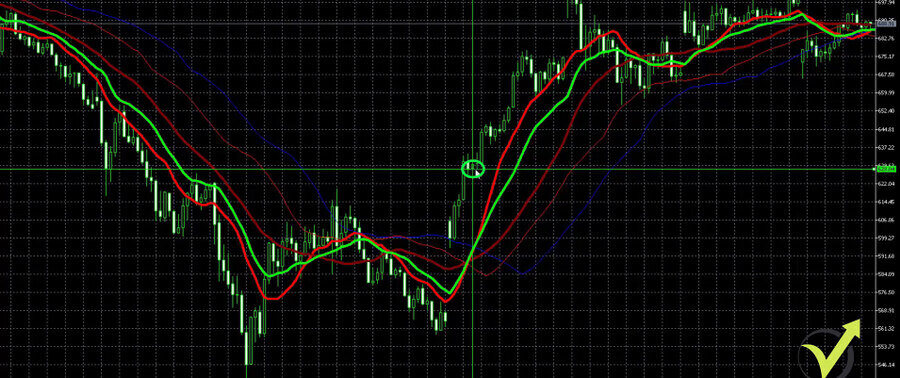
    So when the moving averages cross, we need to see the Lips rising.

    The confirmation to buy

    And in the above example, when we have the fast-moving average crossing the slow-moving average, we see that at the same time the Lips are rising, so it’s a confirmation to buy.

    Let me put a few lines. So the cross happened, let’s say, on the opening of the next bar. I will have one horizontal line as well. At that moment, we have the confirmation to buy.

    The cross in this Tesla stock trading strategy
    The cross

    Now, what is the Stop Loss? It is $50 lower. So if the price we enter is $628.04, then our Stop Loss will be, I will make it red because it’s a Stop Loss and the value will be $50 lower, which is $578.04. I click on OK, and you see where is the Stop Loss.

    Setting the Stop Loss for the Tesla stock trading strategy
    The Stop Loss

    So if we buy here, the price goes against us, the position will close automatically. So it’s a protection for the capital in the account.

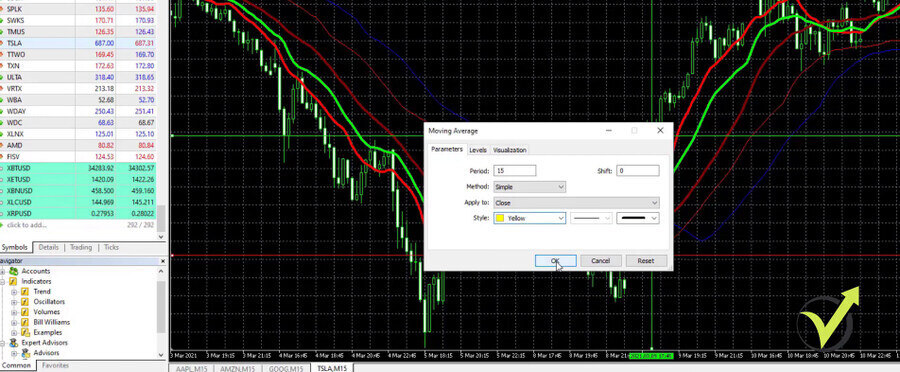
    Now, what is the exit condition? 2 more lines, 2 more moving averages. That’s why I said the chart will become really, really colorful. I will go again to trend and I will have the fast-moving average with a period of 15. So now let’s make the colors more recognizable. For example, I will take brighter yellow for the fast-moving average.

    The fast Moving Average in the Tesla stock trading strategy
    The fast Moving Average

    And then I will add one more moving average indicator, which I will make with a darker yellow. Or it says gold, which I think will look OK and this one will be with period 25 and I click on OK.

    The Take Profit

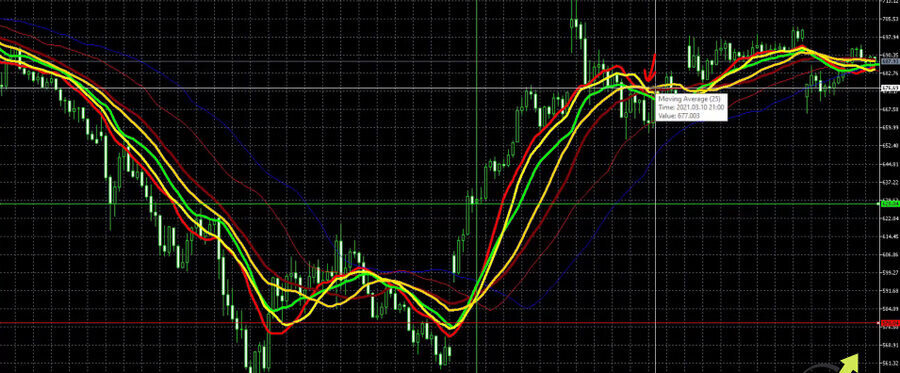
    So the moving averages in yellow are our exit indicator and when the fast moving average crosses the slow moving average downwards, this is our exit. For example, we said we have a confirmation to buy and here is the cross of the 2 yellow moving averages.

    Tesla stock trading strategy confirmation to buy
    The cross of the 2 yellow Moving Averages

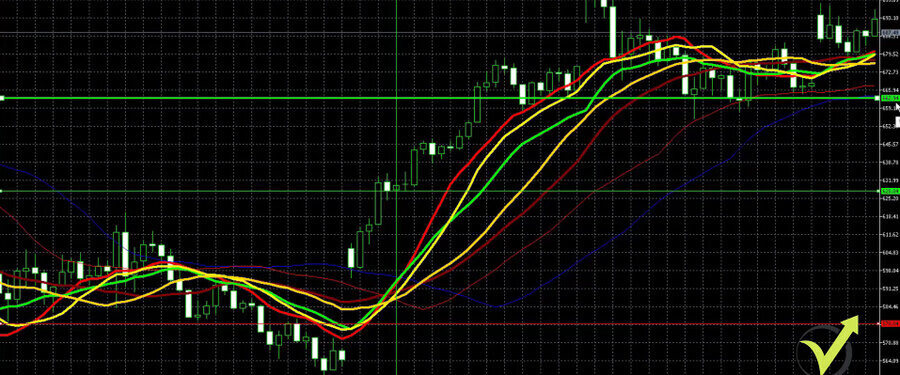
    It happened at the candlestick that you see in the image above. So on the opening of that bar, we should exit. What the price is, I will put it precisely as much as I can, probably it would be better if I zoom a little bit. So we have the cross. And then the yellow lines cross and we have the Take Profit. So I will make it again in green because it’s a Take Profit. Let’s make it a little bit thicker so we can see clearly where it is.

    The Take Profit indicator in the strategy
    The Take Profit

    The price is $662.94, the entry $628.04, which makes it a profit of $34.09 I believe.

    So this is the trading strategy for Tesla stocks and I really like this strategy.

    To summarize it one more time, we have buy signals when the fast moving average crosses the slow moving average.

    Parameters for the Tesla stock trading strategy

    By the time I’m creating this lecture, these are the parameters I use. So these, the reds moving averages and we need to see confirmation that the Lips of the Alligator rises. The exit rule is that a 15 period moving average should cross 25 periods moving average downwards. And this is for the buys, for selling is the very opposite thing.

    We need to see the red moving averages crossing and the brighter one crossing the darker red moving average downwards. And then we need to see the Lips falling at the same time. And the exit will be when the yellow moving averages cross or the yellow crosses the golden one, as it says in Meta Trader indicator properties.

    So we have the exit and the Stop Loss is 50. But one more time, these are the indicator parameters that I use currently when I’m creating this lecture.

    Final words

    This is the strategy for Tesla stock, very colorful. But once you get used to it, you will see very clearly where are the entries and where are the exits.

    Of course, you can change the colors any way you want. I just like to use these colors for the Tesla stock trading strategy. But even if you change any other colors, as long as you see clearly where the entry is and where the exit is, you’re good to go with any colors.

    Thanks for reading. We’ll see you in the next lecture.

  • Forex BUY and SELL [EXPLAINED]

    Forex BUY and SELL [EXPLAINED]

    Forex buy and sell explained

    In this lecture, we will explain what is the difference between buying and selling in Forex, when to buy, and when to sell.

    At Trading Academy, we share everything we know about the Forex market, the crypto & the stocks. And we want to make simply useful content for all beginners. And you should know how the market works, even before you risk a single dollar. So take your time to watch some of our YouTube videos, online courses, and anything that is useful, which will protect you from losing money.

    I want to explain what exactly Forex means, when to buy it and when to sell it, and how actually you’re selling the Forex market. And then I will make a second lecture from my trading screen.

    The Forex market

    And I will give you a few strategies, not just one which you can use for the Forex and you will know when to buy and when to sell it. So first of all, the Forex market is the biggest one out there.

    These are all the transactions that happen from banks to institutions, hedge funds, managers on huge corporations who exchange one currency for another, a British company working in the United States taking its profits at the end of the month and transferring or exchanging pounds or dollars to pounds or vice versa.

    This moves the market. That’s the Forex market, everything that involves currencies. And by the time I’m recording this lecture, the Forex market has over $5 billion daily transactions. That’s a lot, guys, it’s a huge market. That’s why we as small traders or small players need to be very careful, we need to understand how it works, anyway, we can be just wiped up.

    Courses on Forex market

    We can blow our accounts easily and that’s not something you want to experience. I can tell you from my personal experience as a beginner, I didn’t spend enough time learning, I didn’t spend a lot of time understanding how it works. I was very passionate, I knew that I will conquer it. 

    It didn’t happen this way, it took me a lot of time to learn. And back in those days, it was a little bit harder than now, there were no YouTube videos and there were no free courses or paid courses online, I had to travel to London to learn to trade. It took me a lot of time and money but I never regret I did that.

    What I do now, I create a lot of videos and online courses to be useful for everyone who starts. So how to buy and sell the Forex market is something which turns out not to be very difficult if you understand how it works. So let’s take EURUSD as a currency pair because that’s the most traded currency pair.

    bid-ask-spread

    The spread

    It has the lowest spread which makes it suitable for beginner traders. The spread is the difference between the Bid and the Ask price. Just like on the exchange bureau when you go for a vacation or you go to the bank to exchange your currency for a currency that you need.

    And there are always 2 rates. The Bid and the Ask or the buy and the sell. One is more expensive than the other one. There is a difference between the two and this is because they have to profit. The bank, the exchange bureau, they’re not doing exchanges just for you to feel comfortable on your excursion.

    They do it for profits, that’s why a very small difference is there with the EURUSD. So if you buy EURUSD, what you’re buying actually is the EUR and you are selling the USD. And if you sell EURUSD, you are selling the EUR and you are buying the USD.

    Start with a Demo account

    So you predict or expect that the USD will rise. That’s why you are selling EURUSD for the purpose to buy it at a cheaper price or closing the position at a cheaper price and your profit out of that. So how does that all work?

    First, you need a broker, which is a company that will allow you to trade, open an account with it. And then you need to fund an account. Now, keep in mind that most of the brokers have Demo trading accounts. This means you will be able to trade with virtual money and you won’t be risking anything while you’re learning.

    And that’s the best thing out there. Start with a Demo account. When you decide that you want to trade with real money, you fund your account, let’s say with $1,000 or $10,000. And your money is with the broker. Now, you will be using this money to buy EURUSD but at the same time, you can sell EURUSD before buying it previously.

    Short trade

    That’s something that most beginners don’t understand. So selling the market is when you expect the asset to fall and you open a short trade. This is how it’s called, when you’re selling, it’s called short trade. So understanding how Forex works and when to buy and when to sell it, is according to the strategy that you will be using.

    But at any moment, you can buy the market, you can sell the market. And when you are selling it, simply, this is called CFD trading. I don’t want to go into details but CFD trading means Contract for Difference. So I’m not actually purchasing the asset or I’m not actually selling the asset.

    When I say I’m selling EURUSD or when I’m selling EUR buying USD, it doesn’t mean that in my trading account with the broker, the broker will exchange my initial EUR, for example, for USD, and in my account, I will have USD, no. You have the amount, your currency. The one that you funded the account with, and you’re just using that amount of money to buy and sell.

    CFD trading

    And every time you buy and sell, this is called CFD trading, Contract for Difference. So every time you’re doing a contract with the broker that if you sell and the price drops and I close the position there, the broker will pay me this difference as a profit.

    At the same time, if I buy and the price drops and I close the trade, I will lose this difference. That’s why it’s called Contract for Difference and this is how the trading works. I’m not exchanging actual EUR for USD, you are participating in the Forex market but you are not interrupting the price.

    Doesn’t matter if you are selling it or buying it, this will not affect the EURUSD rate. No matter how much your trading rate, simply because you’re not exchanging real EUR for real USD. This is how the brokers offer Bitcoins, this is how they offer stocks, this is how they offer indexes, futures, it’s all CFDs

    Good money management

    I know there are some brokers now starting to offer real shares, real Cryptos. But maybe by the time you’re reading this lecture in a few years time, they will be offering real assets. But even if it’s not real, that’s how the trading works for decades now. So the thing is when Forex buy and when to sell it comes to the question to use a strict strategy.

    So you will know exactly at which moment it is suitable to buy EURUSD and it is suitable to sell EURUSD. That’s very basic guys, this is the first thing you need to understand before you start trading. Anyway, you will just blow your account easily because you won’t understand Forex money management, something important.

    You need to have good money management in your account, you need to have a strict strategy that you will follow, and you need to have patience. Forex trading is not for the people who want to become rich in 2 days, probably you’re more of a casino guy or you want to. You have a bigger chance at the lottery. Not on the Forex market.

    Don’t trust anyone else

    So trading is a difficult thing but it could be easy if you go the right way. The right way to go is to watch as many videos as you can. Diversify the promotional videos and the educational videos. Because the promotional videos always aim to bring you to a website where they will ask you to open an account for you, to trade for you on your behalf. Don’t ever do that, guys.

    The only person you should trust is yourself when it comes to Forex trading. You should be taking the decision when to buy and when to sell and don’t depend on anyone else to manage your funds. Because these are all scammers and one sad day you will realize that you’ve lost everything.

    So never give your money to other people to trade with. Whatever they say, whatever they promise, whatever certificates they show you. It’s all scammed, Stay away from that. And from there, when you gain enough knowledge and you want to test it out, go for a Demo account.

    Practice patience

    Practice as much as you want, you can always restart it. And later in this lecture, I’ll be showing you a few strategies that you can use and you will see that it’s not really hard if you do it the right way. But don’t fall into the emotions to just start trading and get some money quickly.

    That is not what you want to do. Because that’s not the reality. But don’t try to make quick money from Forex trading. That’s not the idea. If you want to make some quick cash and get out, it’s not for you. That’s not the Forex market, it’s not the reality. You need patience, time, and you need to be very careful where you put your money.

    When to buy and sell in Forex

    Now, I’m going to demonstrate a super simple strategy, when to buy and when to sell the Forex market.

    I will show you how actually it works when we do Forex, when to buy and when to sell it. And you will see that it is not hard just funding the money and trading with them. But it is hard to be consistent and that’s why you need a strategy.

    So for the people that do not know me, my name is Petko Aleksandrov from Trading Academy. I share a lot of trading strategies on YouTube and today I will demonstrate a super simple system that you can use for the EURUSD. So right now I am on tradingview.com which is kind of an independent platform that I’ve been using for technical analysis and price action.

    TradingView platform

    And it works really nice because we have many drawing tools on the side and we have indicators, templates, and a lot of options with that platform. So no matter which broker you have selected to use, you can still use tradingview.com to make your analysis and execute the trade on external platform.

    M15 timeframe

    And of course, there is an option that I never did to connect the platform straight with your broker so you can execute the trades. And if you have hard times finding a broker, I will put in the description below a link with the trusted brokers that we use in the Trading Academy. Now for that simple strategy, I will use just one indicator and you will see that 
    it works really easy.

    And this strategy is on the M15 timeframe. Now many of the students and the followers ask me why I prefer the M15 timeframe, this is because, especially with the Forex market and the currency pairs, it is very hard to recognize the trend. Because, when you look at the big picture, you can notice the price is going up. And then the price goes down.

    Now it is going up again, it forms higher highs and higher lows, which is the definition of uptrend.

    An uptrend

    And in this period it forms lower lows and lower highs, which is the definition of the downtrend.

    A downtrend

    We have higher highs and higher lows. So are we in an uptrend now or we are still in the major downtrend?

    Envelope indicator

    And I’m a huge fan of the Dow Theory of higher highs and higher lows for the uptrend and lower highs and lower lows for the downtrend, but not on the Forex market. I use it for the Cryptos and I use it as well for Stocks and indexes. So when it comes to EURUSD and the Forex market, I definitely prefer the M15 timeframe.

    Very simple strategies do not require you to follow the huge trend, which as I’ve said already it is very hard to recognize. So for the very beginners, when we start trading, we need to have a strict system to follow. A strict strategy that will ignore the emotions.

    So it really doesn’t matter what you feel at that moment, do you feel that EURUSD goes up? Do you feel that at that moment it goes down? You don’t know what will happen in the future. So the purpose of this video is to show you a simple Forex, when to buy and when to sell a strategy. So the first thing I will do is, I will add an indicator called envelope.

    Click on Indicators

    Default parameters

    And I have the option to search it, which will find it faster, I will click on it and it’s over the chart. Now the default envelope parameters are huge. If I scroll out, you can see how far the envelopes are.

    The default envelopes parameters

    So these are parallel lines that go around the price, and we have one in the middle.

    Now, obviously, I’m not going to use these default parameters because remember something, the default parameters were created from the brokers because they want you to lose money. So I never use the default parameters. Instead, I will be using length of 21 and deviation or percent of 0.11.

    And if I click on OK, there’s a difference. The envelopes are very tight to the price, they follow the price nice and smoothly and it gives us great entry points.

    The new envelopes parameters

    But one more time, this strategy works only for EURUSD and for M15. And in the end of the video, I will show you how I have backtested this strategy.

    The downtrend

    This means that I will show you some entries over the chart but I will show you that these are realistic entries. And this strategy has a fantastic backtest. So after I have the envelopes, all I will do now, I will use the drawing tools to show you some examples.

    Now I will pick anything randomly over the chart, for example, I will put the line anywhere on the chart and I will explain to you how that works. The idea of this strategy is that we are buying or we are selling whenever we have a retracement. For example, already we have a kind of down movement.

    EURUSD goes down which means that the USD is stronger compared to the EUR for some reason. And, for example, right over here, we see that the price went outside the envelope.

    The price went outside the envelopes

    That’s something interesting that I want you to notice. We already have a downtrend. The price goes down and when we are in a downtrend, usually the price gets outside of the envelope on the downside below

    Candle stick

    It barely gets outside above the upper band. This is exactly our entry. I am selling it, or I’m shorting it, or I am opening a sell trade whenever we have a Candle stick opening above the upper bend after opening below it. So right over here, I will just zoom in a little bit more, you will see that we have this Candle stick opening below the upper band.

    A clearer illustration

    And after that we have it opening above the upper band, which means that this is the moment I want to sell. I will make it red, so it will be more visual. And this is our entry, I will take one circle to point out exactly where I’m selling. And at that moment it could be strange if you see the price just going up and you sell but that’s the strategy, guys.

    This is what I’ve noticed with the years that work the best. This is how I’ve done awesome profits with Bitcoin in 2020 and 2021. Because I was buying the dips or I was buying every time when the price drops. The entry price is 120.80. The good thing with TradingView, you can just copy the line and paste it, which will bring you another one.

    Stop Loss and Take Profit

    And this one, I will be using for a Stop Loss level. Now the Stop Loss for that strategy is 70 pips higher. My entry is 120.80 plus 70 pips, 121.50. A little bit higher and it is, 121.50. I’m not going to put it exactly right now, I just want to show you the strategy. And I will just copy-paste one more, ctrl+C plus ctrl+V on my keyboard, and that one I will make it green because it will be our Take Profit of 90 pips.

    So we have an entry of 120.80 and then I will have a Take Profit of 90 pips lower, which will make it 119.90, right, 119.90. And here we go.

    The Stop Loss and Take Profit

    So the Stop Loss is a little bit smaller than the Take Profit but you should not go for the common 2 to 1 or 3 to 1 risk to reward Stop Loss and Take Profit.

    If you guys put your Stop Loss very close to the entry point, for example, if I have a Take Profit of 90 pips and I have a Stop Loss of 30 pips, the smaller the Stop Loss is, the higher the risk that the price will hit it. The smaller your Stop Loss is, the more often you will hit the Stop Loss. And that’s something you don’t want to do.

    Forex when to buy and when to sell system

    Now let’s see what happens after that, price went lower, a little bit sideways, retraced. So here is another entry.

    Another entry

    The price went outside of the envelope above the upper band. And on the opening, you can have another entry or that’s another sell trade. After that, the price goes sideways, and boom! We have 90 pips into our account. So let’s now delete that and see what we will have.
    We have the opposite signal. At that moment I should be buying. Because I have the very opposite thing. The Take Profit was hit and I’m waiting for the next entry, which comes a little bit later when I have the price going below the lower band.

    The Take Profit was hit

    So that strategy as a Forex when to buy and when to sell system and it will give you a buy sell, sell buy or a few consecutive buys.

    But in this case, I had a selling opportunity and I’m having now a buying opportunity. So my entry is at 119.69. I have a buy which means that my Stop Loss will be below the entry price 70 pips lower would be 118.99.

    Expert Advisor Studio

    And my Take Profit would be 70 pips higher which in this case I will make green because it is a Take Profit and I will have 119.69 plus 70, that would be 120.59 approximately.

    The new Stop Loss and Take Profit

    So at that moment I should be buying and I put a Stop Loss and I put a Take Profit. What happened with the price? It went sideways and it went very close to the Take Profit.

    It went really close to the Take Profit but it didn’t close and after that, the Take Profit was hit.

    The Take Profit was hit

    So keep in mind that there will be always the case where the price goes very close to your Take Profit but it doesn’t reach it and then it can fall down and hit your Stop Loss. So I would suggest, if you are in front of the computer, you can always take your profit if it reaches very close to the Take Profit level.

    It’s not worth waiting another 3, 4, 5 pips and to lose the trade. So this strategy works really nice and as I’ve said, I will show you how I know the backtest and how I know that actually, the performance of the strategy is good. I’ll just bring the Expert Advisor Studio which is the software I’ve been using for backtesting.

    Exit indicator

    We have the very same strategy, envelopes as an entry indicator, we have the Stop Loss, the Take Profit, and we have our balance chart. You can see a very smooth balance chart, of course, with a few drawdowns but that’s normal. 

    The balance chart

    We have the indicator chart where I can see precisely all of the entries. I can see exactly where the trades were opened, where they were closed, for what reason?

    The indicator chart

    Was the Stop Loss hit? The Take Profit? And actually, that strategy has an exit indicator as well if you want to use it. It is the RSI, so you can add it on the chart and whenever the RSI is higher than the level line, you can take your profit. But I personally prefer to use just Take Profit of  90 because it works just great.

    And if you want to use the RSI for that strategy, we’ve been using period of 41 and level of 95. Again not the default parameters. And the good thing with this backtesting software is that I have a huge report with a lot of information for that strategy. I can see a lot of statistics and a lot of graphs and things that I usually don’t look at a lot. All I care about is a stable balance chart and of course, a strategy that will persist in time. 

    Your opinions and suggestions

    And that strategy has been working great until the moment. I’ve been testing it with an Expert Advisor. So with EA Studio we have the opportunity to export strategies easily and you can do that if you want to trade that strategy with a Robot automatically.

    Exporting the strategies

    So that’s a super simple Forex strategy that will give you the idea when to buy and when to sell.

    And you will feel comfortable using it because it has a good risk reward. Return to drawdown is 363 and we had 289 trades executed with that strategy since the beginning of 2018. It’s a lot of trades that prove that the strategy is actually robust. So let me know how you feel about that strategy. If you tested, drop your opinions and suggestions as well in the comments below.

    It would be great to discuss the strategy and if anyone has any idea how we can improve it, I can test it out in EA Studio and actually see if it will give me a better result. Because any time I make a change, for example, if I change the profit to 100, immediately I will see a change in the balance chart. With this Take Profit recently, actually, the strategy starts to lose.

    So 90 works really nice for the moment and gives a better equity line.

    Thank you very much for reading this lecture, guys. If you want to get more free trading strategies, ideas when to buy and when to sell in the Forex market, subscribe to our YouTube channel. I will see you in the next lecture.

  • How to Stake Tezos on Ledger Nano Wallet

    How to Stake Tezos on Ledger Nano Wallet

    Today I’ll be showing you how you can stake Tezos using the Ledger Live app, and I will demonstrate the process step by step.

    Is Tezos staking worth it?

    Ledger is one of the safest wallets and more and more people are using it. But not everyone knows that actually, they can earn passive income from keeping their tokens in their hardware wallet.

    So if I am a token holder of Tezos, I can delegate the validation rights to other token holders that are known as validators. But I won’t be transferring ownership of my tokens. The good thing is that while I am delegating,
    my Tezos is completely liquid. This means that there is no locking period, I can move my Tezos at any moment. As well, it is said that there is no risk of delegating the Tezos when using the Ledger Live device. The only risk is that I won’t be getting my rewards. This is why choosing carefully the validator is essential.

    And I’ll suggest you always go with the validator that offers the highest rewards, because if too many people choose him, then he might not be able to do it.

    How to stake Tezos?

    So let me open the Ledger Live app now and I will show you how it works. What I have here are different accounts where I store Bitcoin, Ethereum, Stellar, Litecoin, Bitcoin Cash, Tezos.

    Accounts

    Now if I tap on my Tezos account, I have a total of 255.37 Tezos, which equals $887 based on the current price of Tezos.

    I have 255.37 Tezos

    Earning rewards

    And on the top you see that I have the option to earn rewards. You can earn rewards by delegating your account. I will tap on that and here we have 3 important things to note, delegated accounts remain yours.

    I tap on Earn rewards

    And if we compare the information from the official website, you can see that the token holders can delegate their validation rights to other token holders called validators without transferring ownership.

    The information from the official website

    And the second important thing is that we remain with liquid assets.

    We remain with liquid assets

    In other words, we don’t have freezing periods or locking periods like what we have with the Earn section on Crypto.com. At any moment we can exchange, move or transfer the tokens. And the last thing is they state that there is no risk when you are delegating the tokens, the only risk is not to get your rewards.

    There is no risk when you are delegating the tokens

    Now I will tap on Delegate to earn rewards and you will see that it will give me automatically a delegator called Figment, that offers 5.69% yearly reward.

    It gives me a delegator called Figment

    But the better thing you should do, is to choose a delegator by yourself. So I will tap on the Pencil.

    I tap on the pencil

    I will see all of the delegators.

    A list of all the delegators

    And here we see estimated yield or this is the reward.

    Its risky to go with a baker that has run out of capacity

    I never aim at the lowest fees. Anything between 5 and 6 works well for me. And if the fee is that low, probably there is a reason for it.

    So I usually go with bakers that have a fee somewhere 5-6% and are at least for a year on the market. Then I look at the staking yield. Again, not a good idea to look always for the highest yields. But of course, anything above 5 would work great. Then we have the efficiency, then we have the capacity.

    And if you go with a baker that has run out of capacity then you take the risk, they might not be able to complete and pay you back the promised rewards.

    The purpose of staking Tezos with Ledger

    So what you need to do is to make your own research. You can visit their Twitter profiles or other social media, look for reviews and see which are the ones that you can trust. I will go now for the purpose of this lecture and for the purpose of staking this Tezos account with the Steak and Bake. They have a 5% fee which is just fine for me, they’ve been on the market since November 2019.

    And they have staking yield of 5.92, which is very close to the maximum and we have good efficiency, they’re from Switzerland, and you can see that they have some available capacity, so I will go with them.

    Steak and Bake

    Now, let me open the same website on the phone. And I will look for Steak and Bake, here it is, 5%.

    I open the website on my phone

    You can see the same information, it’s the very same thing.

    It’s the same website, just looking at it from the computer, it’s much easier and I can see the bigger picture. I will tap on it and when opening, you will see that I have their address.

    I see their address

    Starts with TZ and ends on 9M, and below I have some more information about that baker. But what I need to do right here is to copy the address. So I will have the address where I will be sending the delegation rights.

    Both addresses are displayed

    And I will open the app now, I will tap again on Delegate to earn. Now again, the Ledger Live app gives me another baker by default. But I will tap on the Pencil to choose the one I want. Now here you can look for them in the list but the better thing you can do is tap on Add custom validator.

    Tap on Add custom validator

    And I will paste the address from the website and I will tap on Confirm validation.

    I tap on Confirm validation

    And here is the same icon with the delicious steak and it shows the estimated yields per year. I will tap on Continue.

    I tap on Continue

    Now I need to connect to my Nano X, it will take just a couple of seconds to connect it.

    I connect it to my Nano X

    It requires confirmation from the device itself. Once I do that, it will display both addresses.

    I see both addresses

    So it will show the address from the Steak and Bake. And it will show as well my public address, which is the source.

    And then I will be just confirming it from the device. It says, ‘On your device, please confirm to finalize the operation’. And it’s loading, takes a few more seconds, and here it is, ‘Delegation sent’.

    Delegation sent

    You should earn your first rewards in around 40 days. Depending on the validator and then I will see the results.

    If you’re not familiar with Ledger Nano X, you can use Ledger Nano S for staking your Tezos

    I have some more details like the date, the hour, the network fee. Which is about 20 cents, very small fee. And from my address to the address of the delegator. And if I go back to the portfolio, I can see the delegation as actual transaction and you can see that it was delegated.

    The portfolio

    It’s easy to keep track of what I have done, if I’m delegating or if I’m staking more accounts.

    So now the Tezos actually stays into my account, it’s on my Ledger. I have just delegated it to a baker and I will get rewards for it. So this is how easy it is to delegate your Tezos using the Ledger Live app connecting it to the Ledger Nano X I’m using. And if you’re not familiar with it, there is the Ledger Nano S as well. I have made a video for both of them, so if you wonder which one would work better for you, then you can have a look at it.

    But if you are a beginner who is just starting out and you want to test or you are buying your first Cryptocurrencies for a couple of hundred dollars, for example, I don’t think it’s worth it buying a Ledger. Probably on a later stage when you have at least a couple of thousand dollars in value. Then I think it is worthy having a Ledger so you will store your Cryptocurrency safe.

    Always use the official website

    And something very important. If you are planning to buy a Ledger for staking Tezos, I would suggest you go from the official website. This is our affiliate link if you want to use it.

    And if you have any questions about staking Tezos on the Ledger Live app. Or anything that would be useful to you, please write in the comments below. I’ll be super happy to answer your questions if I can of course. And if you found the video useful, give it a thumbs-up. I will see you guys in the next lecture.

  • MetaTrader Robot Tutorial + Free EA Download

    MetaTrader Robot Tutorial + Free EA Download

    In this lecture, I will tell you what is MetaTrader robot and how you can download one for free.

    Are you looking for a free MetaTrader robot to download with no strings attached? Then you’re at the right place! Just scroll to the bottom of this page and leave your email to receive a download link. Or you can continue reading this lecture and understand what is a MetaTrader robot and how to use it.

    The MetaTrader Platform

    MetaTrader is the most popular platform for manual and algorithmic trading. It owes its popularity to the fact that it is free and most of the regulated brokers provide it. We have conducted a detailed MetaTrader 4 tutorial in another lecture.

    Be sure to use a regulated broker

    And of course, if you are just starting with trading, make sure to start with a regulated and trusted broker. It is super important nowadays because there are many scam brokers. And if you want to withdraw your profits at one moment, you need to use a regulated broker.

    So MetaTrader platform is free for us the traders, the clients. And the brokers pay to a third-party company called Meta Quotes to get the MetaTrader platform and offer it to all of their clients. That’s why it’s free and that’s why it is so popular.

    Robot trading with MetaTrader

    One of the most important features of MetaTrader is that we can use the platform to trade with robots. The robots are automated trading strategies that will execute the trades for us. In other words, we don’t need to stay in front of the computer and click on the “Buy” and the “Sell” button whenever we decide to enter into a trade.

    Trading with many robots on MetaTrader

    The robot does the whole thing automatically, which allows us to trade on MetaTrader with hundreds or even thousands of robots simultaneously.

    And that’s great, it is something that we cannot do manually. You cannot follow more than 2 to 3 strategies manually. But with MetaTrader Robots, you can trade as many trading strategies as you wish.

    By the way, the maximum on the MetaTrader platform is 99 Expert Advisors, which is the other name for robots. But we can install many MetaTrader platforms on one computer, which makes it almost limitless.

    It’s not rocket science, it’s super easy to start trading with MetaTrader robots and I will explain to you how.

    #1 Code the robot by yourself

    The first way is to code it by yourself. 

    coding a metatrader robot
    You can code it yourself

    Well, that’s time-consuming and you need to know programming and you need just to adapt to the Meta Editor, which is the spot where developers called Expert Advisors.

    #2 Hire a developer to code the robot

    There are many trading developers out there who are willing to code Expert Advisors based on the ready strategies that you might have. But keep in mind that these guys take a lot of money. And it becomes quite costly to develop a single Expert Advisor if you pay especially to a good developer.

    #3 Buy the robot from MetaTrader marketplace

    You can buy an Expert Advisor or MetaTrader Robot from the marketplace.

    metatrader expert advisors marketplace
    You can buy an Expert Advisor

    Of course, there is no guarantee that any of these Expert Advisors or Robots is profitable. There are some good pieces out there. But make sure to look for reviews and other satisfied traders that are happy with the performance of the MetaTrader Robot that you are willing to buy.

    #4 Create the robot with a strategy builder software

    The option that I use the most to download MetaTrader 4 & 5 robots for free, is to use strategy builders like Expert Advisor Studio, FSB Pro, Strategy Quant, and etc. There is the Strategy Tester, EA Builder, quite many programs.

    I personally use the most EA Studio and FSB Pro as they are most professional according to me.

    These are programs that allow me to automate a strategy as a MetaTrader robot without programming skills. I do a lot of analysis using these programs and this is how I succeed to trade with many Expert Advisors simultaneously. Because the best thing about using a strategy builder is that, with one click you can export a ready-to-use MetaTrader Robot and download it for free.

    How to use a MetaTrader Robot?

    So now quickly, I will show you how easy it is to use a MetaTrader Robot and you will see that it’s not rocket science. What you see below is the MetaTrader platform which as I’ve said is one of the most popular platforms out there.

    trading with robot on metatrader platfrom
    The MetaTrader platform

    Especially, because we can use Expert Advisors, and here I have 4 MetaTrader robots which I’m trading semi-automatically. What that means is that I decide which direction I want the EAs to trade.

    It is very easy

    So when we’re in an uptrend, I set them on a buy mode. When we’re in a downtrend, I set them in a sell mode.

    The uptrend and downtrend
    The uptrend and downtrend

    And now because EURGBP has broken one very important support level that we have at 088.60. What I will do, I will set a Robot only to sell and you will see how easy it is. I will go to the navigator, where I have the Expert Advisors. Then I will just double-click on the EURGBP Expert Advisor and you will see a small menu comes up where I have all the inputs predefined.

    I click on OK if I want to trade on both directions. But if I want to set up a direction, I need to click on Common.

    common settings on metatrader
    I click on Common

    Then I will select only short, for example. And then if I click on OK, on the top right-hand corner, I see the smiley face.

    I see the smiley face

    This means that the Expert Advisor is attached to the chart and it will start trading. This Expert Advisor or this MetaTrader robot works on the M1 chart. It’s a little bit of a scalping Expert Advisor.

    In the account history, I got a few dollars as a profit from every trade opened but I have a lot of trades that are being opened and closed. I see that I have more profits than losses. These are EAs that I’m just testing out at the moment and probably soon I will share them in one of my courses.

    So it is that simple to place an Expert Advisor on the MetaTrader platform. Expert Advisor, one more time, is the same thing if you say a robot. In other words, a robot is a slang word and many people just call it MetaTrader Robot. Because MetaTrader is the most popular platform for Algorithmic trading and for Expert Advisors or Robots.

    And at the end of the lecture, I would like to say one very important thing. Don’t look for a MetaTrader robot that will bring you constantly profits with EAs without any work to be done. There is always some work – to follow the results, to manage the Expert Advisors, and etc. For example, if you trade many, let’s say 30 robots in one trading account, you better follow the results and see which Expert Advisors perform the best.

    So these you can put on a bigger Live account or you can test MetaTrader robots on a virtual account. Or the so-called Demo accounts which allow the traders to participate in the market without risking any real money. And of course, it is a must to update the MetaTrader robots so they will work on the current market conditions.

    That’s why when I include Expert Advisors in my courses, I always update them and make sure that the students that enrolled in the courses are getting fresh and relevant MetaTrader Robots for the current market conditions.

    Alright guys, thanks for reading this lecture. If you have found it useful, don’t forget to leave a comment below.

    Enter your email address below to receive the free MetaTrader Forex robot download link.

  • How to Make a Trading Bot for FREE Without Programming in 5 Simple Steps

    How to Make a Trading Bot for FREE Without Programming in 5 Simple Steps

    Algorithmic trading has transformed the way traders interact with financial markets. According to many, it is revolutionizing the financial world. At the heart of this evolution are trading robots (or bots as many call them), also known as expert advisors. They execute trades on behalf of traders, based on predefined rules. This way the trades are executed efficiently and without the need for constant monitoring. 

    For many aspiring traders, the question is not whether trading robots are useful, but how to make a trading bot that works reliably and efficiently. But how to create a trading bot if you don’t possess programming skills? Contrary to what you might think, building a trading robot no longer requires extensive coding knowledge. Thanks to modern strategy builders, you can create your own trading bot quickly, sometimes without spending a dime. These tools help traders save time, reduce emotional decision-making, and capitalize on market opportunities around the clock.

    This guide will take you step-by-step through the process, helping you unlock the potential of automated trading.

    What Are Strategy Builders

    Trading bots automate strategies by analyzing market data and executing trades based on predefined rules. Creating these robots used to require programming expertise, but tools called strategy builders have made the process accessible to everyone.

    Strategy builders are software tools that allow traders to design and automate trading strategies without having any programming skills. These platforms provide a user-friendly interface where you can set parameters such as entry and exit rules, stop-loss, and take profit levels. Once configured, the software generates a trading robot that can execute trades on platforms like MetaTrader 4 or 5.There are several strategy builders available today, each catering to different levels of experience and complexity. Let’s briefly explore the strategy builders from EA Trading Academy:

    • EA Studio: This web-based platform is perfect for beginners due to its simplicity and speed. It allows you to test and optimize strategies directly in the software. With a 15-day free trial, you can experiment and create a functional trading bot without any upfront investment.
    • Forex Strategy Builder Pro (FSB Pro): A more advanced tool that you can download and use offline. While it offers greater customization, its slower interface makes it better suited for experienced traders.
    • Express Generator: Unlike the other two, this tool requires some programming skills and doesn’t offer a free trial, making it a choice for professionals.

    Among these, EA Studio is particularly appealing for beginners because it simplifies the process of learning how to create a trading bot. Its intuitive interface and fast testing capabilities make it a top choice for those new to algorithmic trading.

    Some of these programs obviously are costly but they are costly because they save all of this money that we would spend for buying trading robots and for hiring developers. And if you want to test some strategy builders, the strategy builders that we use in Trading Academy, which we found most appropriate for beginners and advanced traders are Expert Advisor Studio and Forex Strategy Builder Professional.

    How to Make a Trading Bot: Step-by-Step Guide

    Creating a trading robot might seem like a challenge, but with the right tools and guidance, the process becomes straightforward. However, before you start creating your trading robot, you should first select a strategy builder that matches your needs and skill level. If you’re new to trading robots, EA Studio is an excellent starting point. It provides a trial period, so you can explore its features without financial commitment. Advanced users may consider FSB Pro for more detailed customization, but for simplicity and speed, EA Studio is unmatched.Let’s walk through the process of building your first trading robot in EA Studio:

    Step 1: Choose the Right Strategy Builder

    The first step is to go to EA Studio home page or you can simply select it from the drop-down menu at EA Trading Academy’s Software section (former EA Builders). If you are not sure about the capacity of this software and want to test it first, you can register for free 15-day trial, or you can securely proceed with purchasing the software, simply because it will not disappoint you and the investment will be worth it. 

    Step 2: Set Up the Basic Strategy

    Your trading bot’s success is strictly dependent on the quality of the strategy you define. Once you are at EA Studio interface, just click on “Strategy” tab and you are just minutes away from creating your own trading bot without single code needed. From the “Editor”menu, start by deciding what you want the bot to do—whether it’s trading forex pairs, commodities, or cryptocurrencies. Then set the rules for:

    1. Entry Conditions: Specify the market signals (indicators) that trigger a trade. For example, you can use indicators like the Commodity Channel Index (CCI) to identify when to enter a long (buy) and short (sell) positions.
    2. Exit Conditions: Define when the bot should close a trade. For instance, a trade might close when the CCI changes direction or when a set profit target is reached.
    3. Risk Management: Adjust your stop loss and take profit levels to balance risk and reward. A good range for stop loss might be 10–100 pips, while take profit could be set between 50–100 pips.
    4. Add Indicators: Customize entry and exit points with popular indicators like the Accelerator Oscillator or Moving Averages. However, avoid overcomplicating strategies with too many indicators.

    By using tools like EA Studio’s strategy editor, you can see real-time feedback on your settings, helping you refine your strategy before testing it on historical data.

    Step 3: Test and Optimize

    Backtesting is an essential step in creating a trading robot. This process evaluates your strategy against historical market data to determine its potential profitability and risks.

    EA Studio simplifies backtesting by instantly updating results as you tweak parameters. For example, if your strategy trades gold on the M15 timeframe, you can quickly test how different stop-loss or take-profit levels impact performance. The goal is to find a balance between profitability and consistency, ensuring that your bot performs well under various market conditions.

    So, let’s recap this step:

    1. Run Backtests:
      • Use historical data to evaluate how your trading bot performs in past market conditions.
      • Example: Backtest a gold-trading strategy on the M15 timeframe.
    2. Fine-Tune Parameters:
      • Modify settings to improve the robot’s profitability.
      • EA Studio provides instant feedback, making optimization quick and intuitive.

    Step 4: Export Your Trading Robot

    Once satisfied with the backtest results, you can export the trading robot as an Expert Advisor file. The export process is seamless and the code is precompiled, meaning no programming is required. Simply upload the file to your MetaTrader platform, attach it to a trading chart, and let it run.

    Step 5: Validate with a Demo Account

    Before deploying your bot on a live account, it’s critical to test it in a demo environment. This allows you to observe how the robot performs in real market conditions without risking actual funds. Use this time to familiarize yourself with managing your bot and fine-tune its parameters as needed.

    Test your trading bot in a risk-free environment. This way you will:

    • Understand its behavior in live market conditions.
    • Compare performance between demo and live accounts.

    And voilà, you have your robot ready for trading. And you didn’t have to be a developer or buy a pre-made robot from market place. So the simple answer of how to make a trading bot is use the powerful strategy builder EA Studio and within minutes you can create your own XAUUSD M15 Robot for example. Like the one which you can get for FREE here: https://eatradingacademy.com/robots/trading-robots/commodities/free-m15-gold-robot/.

    How to Make a Trading Bot: Tips for Maximizing Your Trading Robot’s Potential

    Creating a trading robot is just the beginning. To achieve long-term success, you need to continuously monitor and optimize its performance.

    One of the advantages of tools like EA Studio is the ability to generate thousands of strategies simultaneously. By using the generator feature, you can experiment with various market scenarios, timeframes, and trading instruments. This diversification helps you spread risk and identify the most effective strategies.

    Additionally, consider deploying multiple trading robots across different markets. For instance, you could have one bot trading forex pairs like EUR/USD and another focusing on commodities like gold. Diversifying your bots not only reduces risk but also increases your chances of finding consistently profitable opportunities.

    Key Takeaways:

    1. Fine-Tuning Strategies

    • Experiment with different timeframes, currency pairs, or commodities.
    • Use EA Studio’s generator to create thousands of strategies quickly.

    2. Use Multiple Robots

    • Diversify risk by deploying multiple trading bots across various markets.

    3. Monitor Performance Regularly

    • Even well-optimized robots need adjustments to adapt to changing market conditions.

    How to Make a Trading Bot: Why Choosing the Right Broker Matters

    Your trading bot’s performance can be heavily influenced by your choice of broker. Factors like spreads, commissions, and execution speed play a crucial role in determining profitability.

    Testing your trading robot on both demo and live accounts with the same broker is also a good practice. This helps you identify any discrepancies in performance due to server settings or execution differences.

    A reliable broker is essential for executing your trading bot’s strategies effectively. Here’s what to consider:

    1. Regulation: Choose brokers governed by reputable authorities.
    2. Spreads and Commissions: Opt for brokers offering tight spreads and low fees.
    3. Leverage Options: Match leverage levels to your trading style and risk tolerance.

    Look for brokers regulated by reputable authorities to ensure transparency and security.

    How to Make a Trading Bot: Risks and Responsible Trading

    Even the best trading robots come with risks. Market conditions are constantly changing, and no algorithm can guarantee consistent profits. That’s why it’s essential to approach automated trading with caution.

    Start by trading small amounts and always use stop loss orders to limit potential losses. Keep in mind that backtested results may not always reflect real-world performance, so continuous monitoring is crucial. As you gain confidence in your bot’s performance, you can gradually increase your investment.

    While trading robots can simplify trading, they are not without risks.

    1. Market Volatility: The unpredictable nature of markets can affect robot performance.
    2. Over-Reliance on Automation: Monitor your bots regularly to ensure optimal functionality.
    3. Start Small: Use demo accounts and trade with minimal lot sizes to mitigate risk.

    The future of trading robots lies in further automation and machine learning. As technology evolves, we can expect strategy builders to become even more powerful, providing traders with unprecedented tools to succeed in volatile markets.

    For traders who want to push the boundaries of automated trading, tools like FSB Pro and the Top 10 Robots app offer exciting possibilities. These platforms cater to advanced users, enabling more detailed strategy customization and large-scale strategy generation.

    Conclusion: Create Your Trading Robot Today

    Creating a trading robot has never been easier. With strategy builders like EA Studio, you can design, test, and deploy automated trading strategies without writing a single line of code. By following the steps outlined in this guide, you’ll be well on your way to mastering algorithmic trading and building a bot tailored to your goals.

    Take the first step today. Experiment with EA Studio, refine your strategies, and embrace the future of trading automation.

    Learning how to create a trading robot without programming is more accessible than ever. With strategy builders like EA Studio, you can develop, test, and deploy automated strategies tailored to your needs. Start small, validate your bots, and grow your expertise in algorithmic trading.

    Ready to start? Try EA Studio’s free trial and experience the ease of creating your own trading bot.